





Cài đặt soạn thư, chữ ký và mẫu
To add an email signature, go to Settings > Compose > Signature > Add Signature. The Compose section has three tabs: Compose, Signature, and Templates.
Your signatures and templates are end-to-end encrypted, the same as your mail.
Set the default font size and color
On the Compose tab, Default formatting sets how new messages look. Replies and forwards keep their original formatting.
- Default font size. Small, Default, Large, or Extra Large.
- Default text color. Theme default follows your app theme. Select the swatch to pick a color, or Use theme default to go back.
Add a signature
- Under Your Signatures, select Add Signature.
- Enter a Signature Name, such as Work or Personal.
- In Apply to, choose the address that uses it. The default is All aliases (default).
- In Signature Placement, choose Use global setting, Above quoted text, or Below quoted text.
- Write the signature in Signature Content, and select Create Signature.
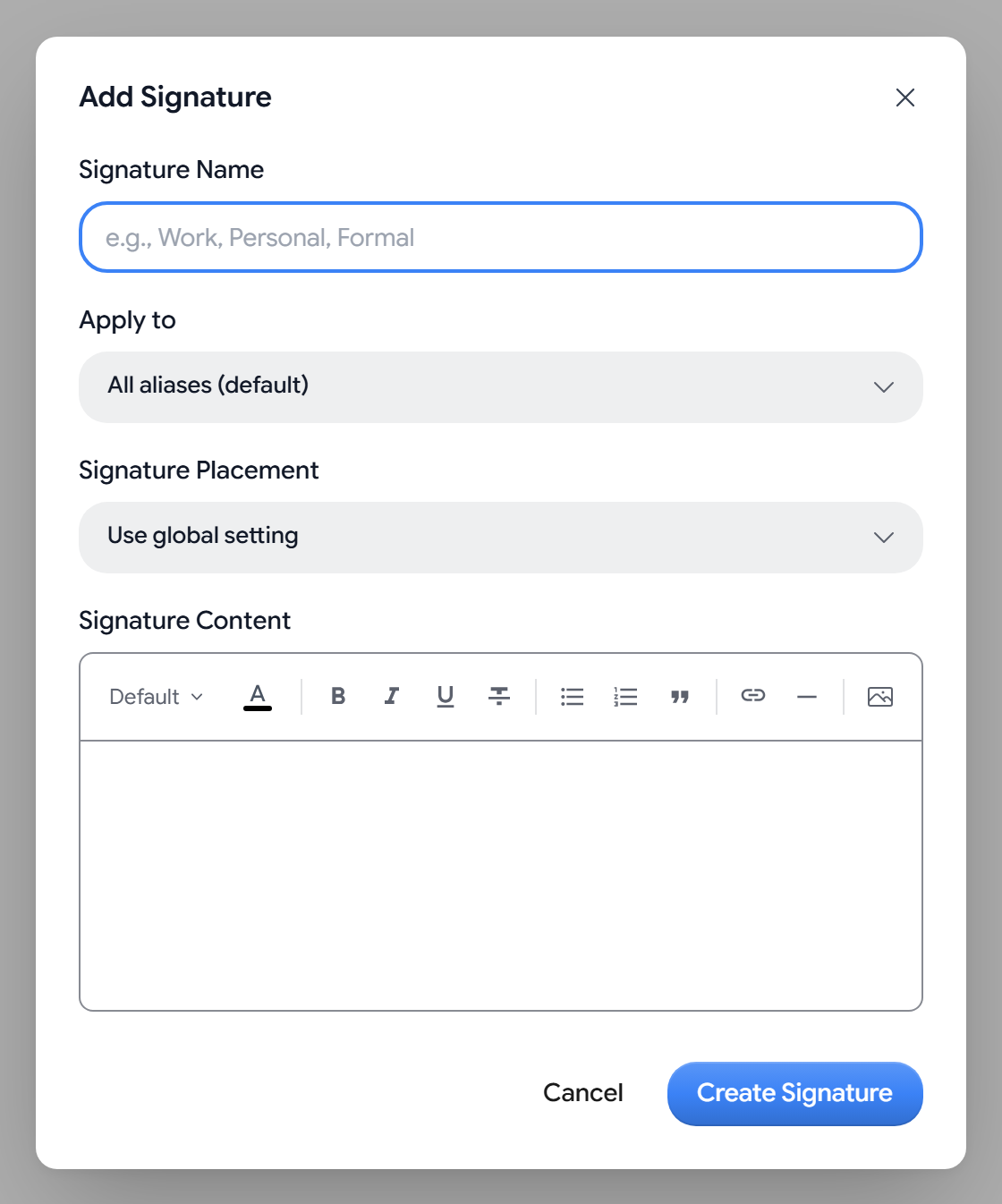
- Images. You can add PNG, JPEG, GIF, or WebP images under 2 MB.
- One per alias. Each alias can have one signature, so Aster will mark an alias that another signature already uses.
Choose when your signature is added
Signature Mode is Auto by default, which adds your default signature to every new message. Manual only adds one when you select Insert signature in the composer, and Off never adds one.
- Set as default. The default signature is used for every address that does not have its own, and shows a Default badge.
- Signature Placement. Sets where signatures on Use global setting go in replies. Above quoted text is the default.
- Signature separator. Adds a
--line above your signature. It is on by default. - Show badges in emails. Shows your badges in the signature area. It is on by default.
- Aster Mail watermark. Adds “Secured by Aster Mail” to the bottom of your mail. It is on by default, and turning it off needs a paid plan.
Save a template
- On the Templates tab, select Add Template.
- Enter a Template Name and a Category. Templates without a category go under General.
- Write the text in Template Content. You can use placeholders such as
[Name]or[Date]for the parts that you fill in each time. - Select Create Template.
To use a template, select Insert template in the composer.
Edit or delete a signature or template
Select the pencil icon to edit one, or the trash icon to delete it. Deleting can’t be undone.
If you see “Some entries can’t be read on this device, so they aren’t shown here”, Aster could not decrypt those entries on this device. Sign out and back in, and check again.
Related articles
Bài viết này có hữu ích không?