





Người gửi bị chặn và được cho phép
To block a sender, go to Settings > Mail Rules > Blocked > Add, enter their address or domain, and select Block. Aster sends their mail to Spam instead of your inbox.
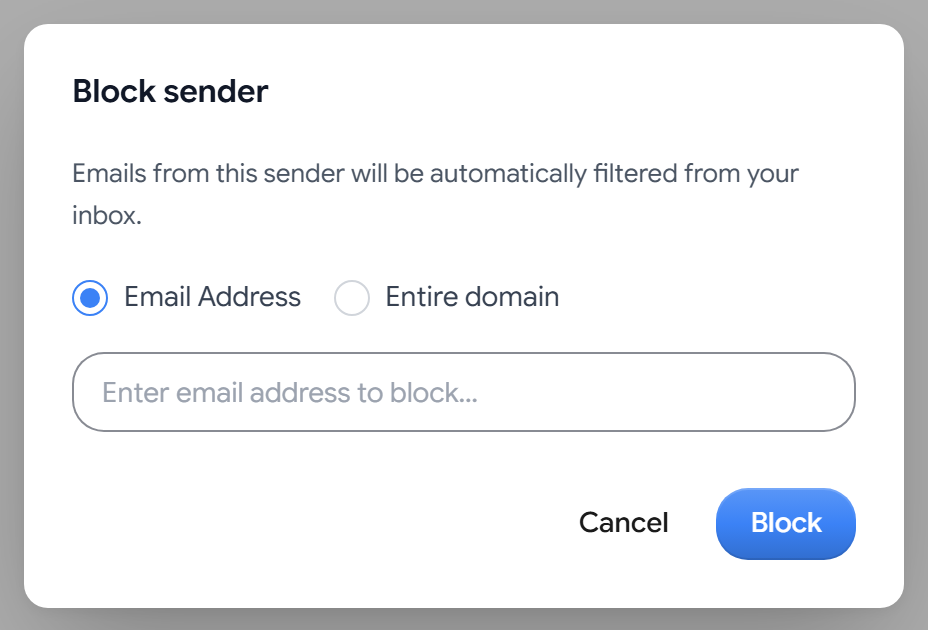
Block a sender or domain
- On the Blocked tab, select Add.
- Choose Email Address for one sender, or Entire domain for every address at a domain.
- Enter the address, such as
name@example.com, or the domain, such asexample.com. - Select Block.
You can also block the sender of a message that you are reading. In the message’s menu, select Block sender.
If mail from a blocked sender still arrives, they may be using a different address. Block the Entire domain to catch every one.
Unblock a sender
- One sender. Select Unblock sender next to it.
- Several senders. Select their checkboxes, and select Unblock sender, which shows how many you picked. Shift-click to select a range.
To find an entry, use Search blocked senders. Each entry shows the date that you blocked it.
Allow a sender
Mail from a sender on your Allowlist is never marked as spam and always reaches your inbox.
- On the Allowlist tab, select Add.
- Choose Email Address or Entire domain, and enter the address or domain.
- Select Add.
To take a sender off the list, select Remove next to it. To remove several at once, select their checkboxes and select Remove. If a trusted sender still goes to Spam, check that they are not also on your Blocked list.
Unreadable entries
Both lists are encrypted. If an entry shows Unreadable entry, this device cannot decrypt it, but it still applies until you delete it.
Related articles
Bài viết này có hữu ích không?