





Nhập email từ nhà cung cấp khác
Move your old mail into Aster by connecting your old account or by uploading export files.
Either way, your messages are encrypted on your device before Aster stores them.
Before you begin
- Check your free space in Settings > Storage. A large mailbox can fill a free plan.
- To connect an account, find out whether your old provider requires an app password.
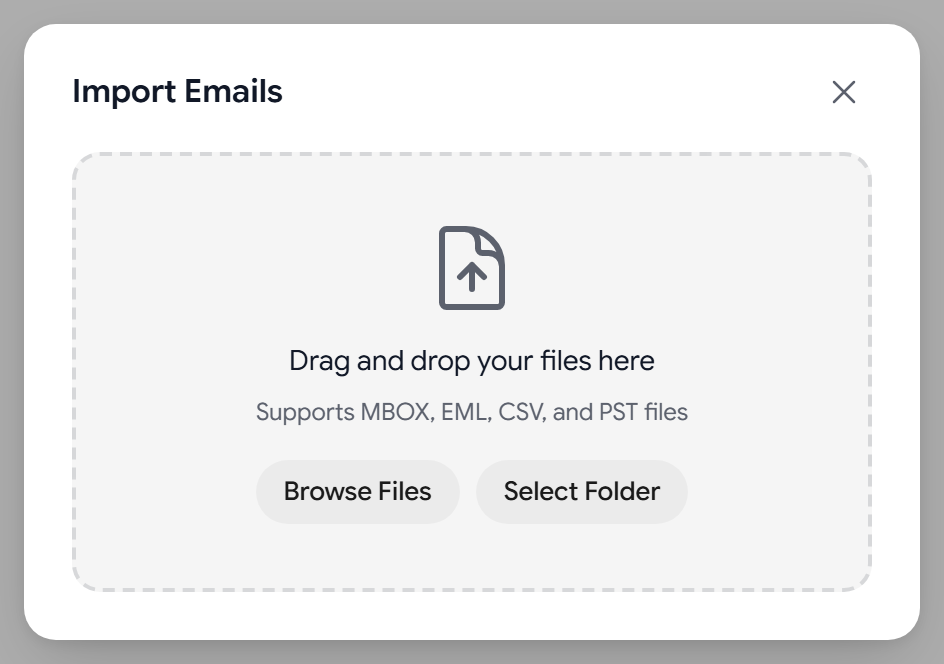
- To upload files, export your mail from your old provider first. Aster accepts MBOX, EML, CSV, and PST files.
Connect your old account
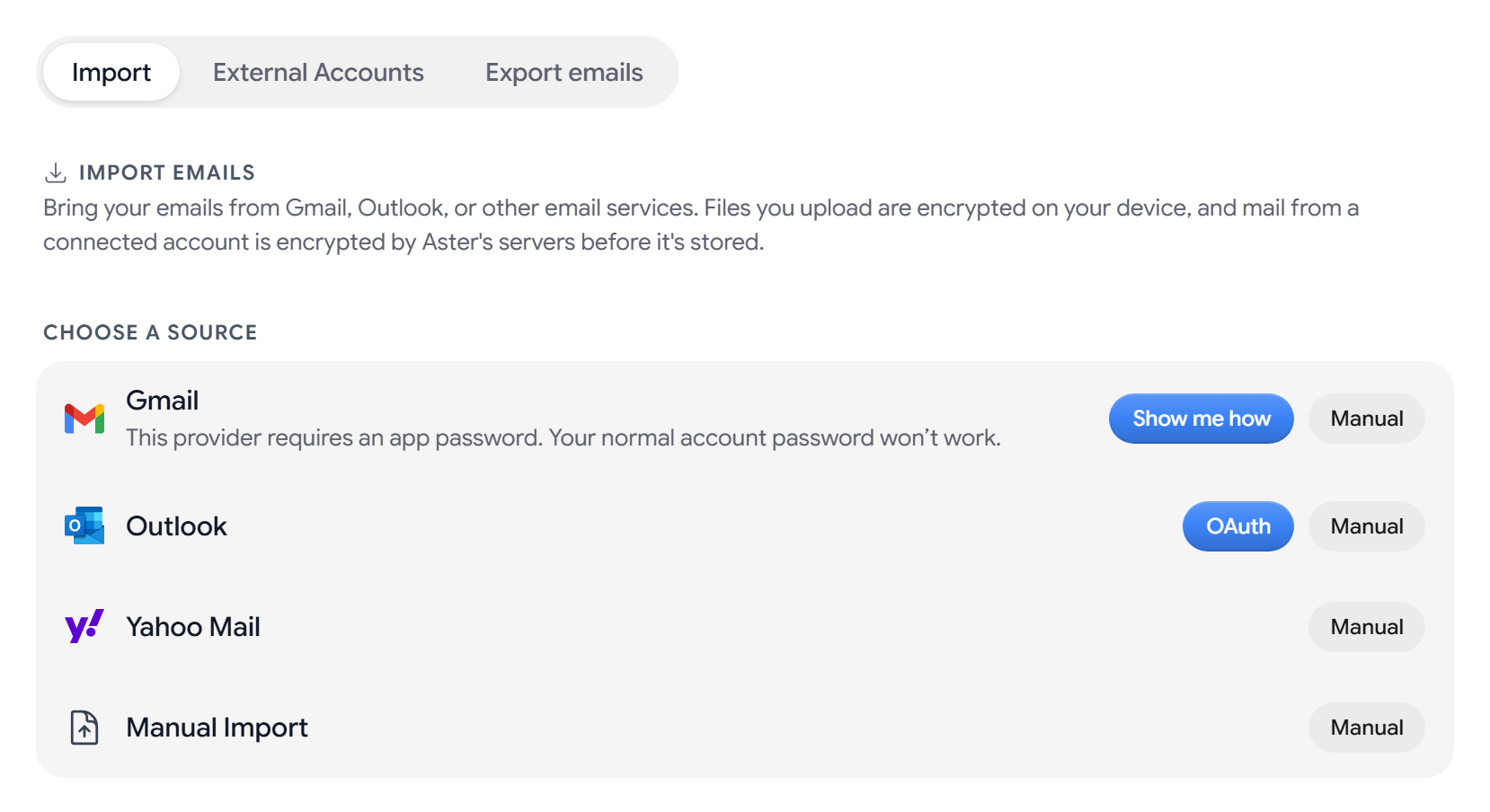
- Go to Settings > Import and open the Import tab.
- Under Import Emails, in Choose a source, find your old provider’s row.
- For Gmail, select Show me how and follow the steps to create an app password and connect the account. For Outlook, select OAuth and sign in in the window that opens.
- Start the import and follow its progress on the Import tab.
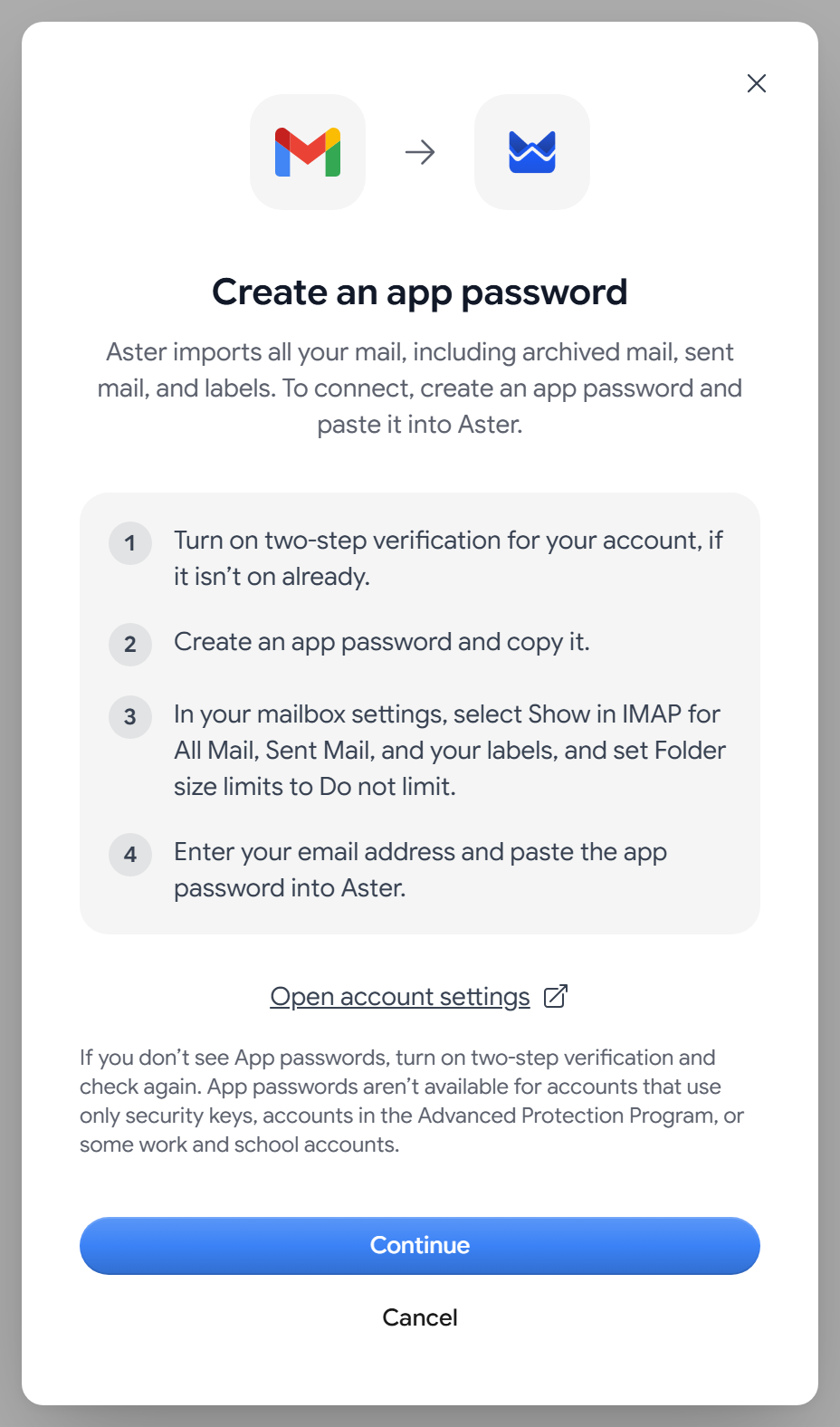
A connected account imports all its mail, including archived mail, sent mail, and labels. Aster creates matching folders first and shows Setting up folders while it does.
After the first import, the account appears under Connected Accounts:
- To check for new mail, select Sync Now.
- If Aster asks you to sign in again, select Reconnect.
- To stop syncing, select Disconnect. The synced mail stays unless you also select Also delete imported messages.
Upload export files
- Go to Settings > Import and open the Import tab.
- In Choose a source, select Manual next to your old provider or next to Manual Import.
- Select Browse Files or Select Folder, or drag the files onto the window.
- Start the import and wait for it to finish.
What gets imported
- Messages and attachments, with their original dates.
- Your folder structure, as Aster folders.
- Labels, from a connected account.
Uploaded files arrive marked as read. A connected account keeps each message’s read or unread state. Filters and contacts don’t come across. To add contacts, see Import your contacts.
Cancel or undo an import
- To stop a file upload that’s running, select Cancel Import. To stop a connected account while it syncs, select Stop under Connected Accounts, or select Cancel while it’s setting up folders.
- To remove everything an import brought in, find it under Recent Imports and delete it. This permanently deletes those messages and can’t be undone.
Tips
- MBOX, CSV, and PST files can be up to 500 MB each. Split a larger export and upload each part.
- A single message can be up to 50 MB. Aster skips larger messages and tells you about them.
- Aster skips messages you already imported and reports how many duplicates it skipped.
- If Aster can’t create a folder, that folder’s messages go to your inbox.
- Large mailboxes can take a few days. Leave the import running.
Troubleshooting
- Some messages seem to be missing: check Spam and Sent. Aster sorts imported mail by its content.
- The server rejects your username and password: check them, and use an app password if your provider requires one.
- A connected account shows “Re-authorization required”: select Reconnect and sign in again.
- Aster says your storage is full: delete some mail or upgrade your plan, and then continue.
- The file is rejected: check that it’s an MBOX, EML, CSV, or PST file within the size limits.
When the import finishes, set up forwarding so new mail reaches you too. See Forward mail from your old address.
Related articles
Bài viết này có hữu ích không?