





שינוי הסיסמה או הוספת מפתח גישה
Change your Aster password, or add a passkey so that you can sign in with your device instead of typing a password.
Your password protects the keys that decrypt your mailbox. Aster never sees it: your device turns it into a verifier before anything is sent.
Before you begin
- Know your current password. If you forgot it, see Recover your account.
- Use a stable connection. Changing your password re-encrypts some of your data, and an interrupted change can lose it.
- To add a passkey, use Aster Mail on the web at
app.astermail.org.
Change your password
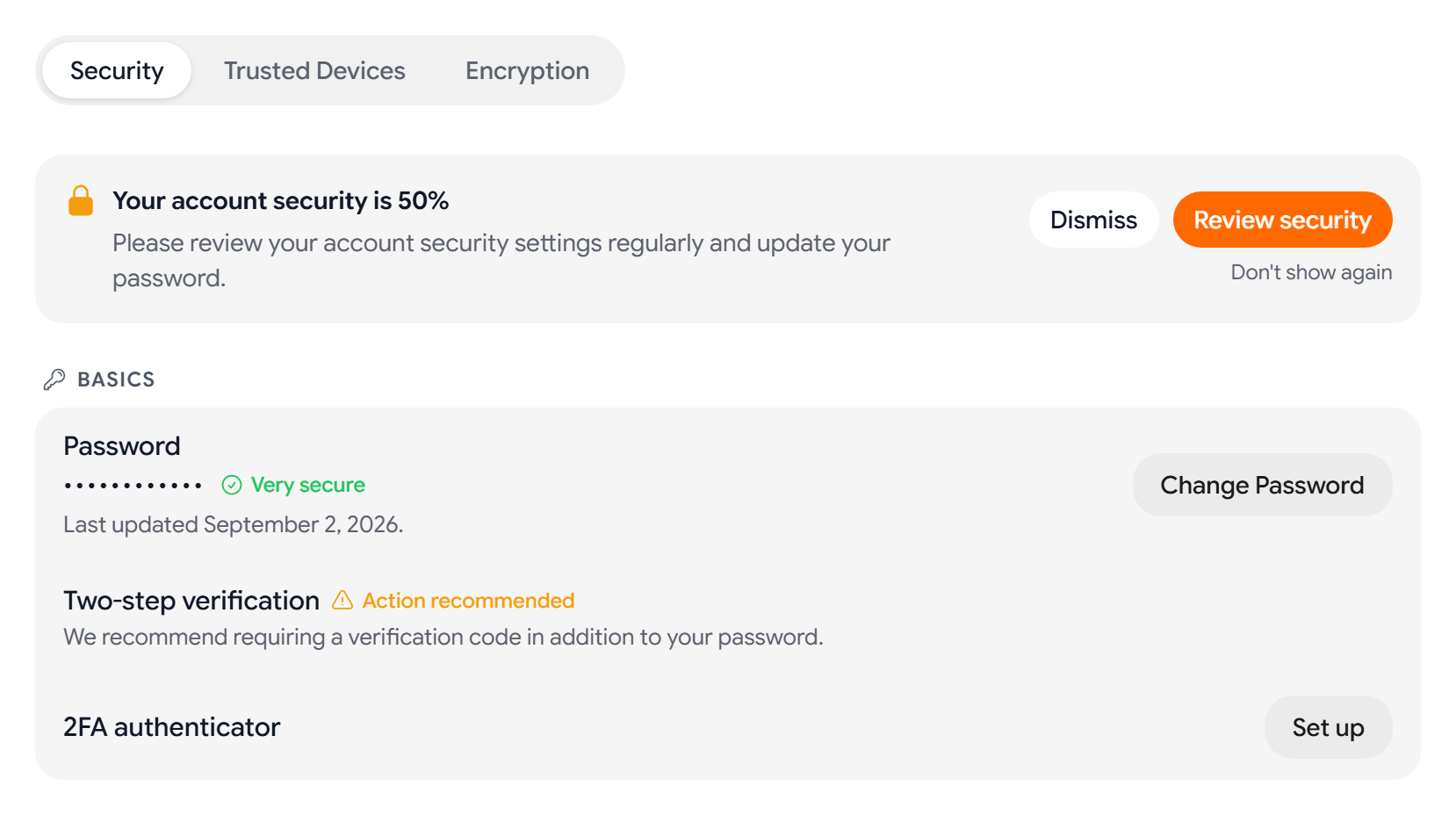
- Go to Settings > Security. In Basics, the Password row shows when you last changed it.
- Select Change Password.
- Enter your Current Password and your New Password, and then enter the new password again in Confirm New Password.
- Select Update Password, and keep the window open until the change finishes.
Your new password must have between 8 and 128 characters. If the password appears in a known data breach, Aster warns you so that you can choose another one.
While the change runs, Aster re-encrypts your labels, signatures, and templates with the new password. If your connection drops during this step, that data can’t be recovered.
What happens after you change your password
- Every other session signs out. Your current session stays signed in.
- Aster removes all your trusted 2FA devices, so each device asks for a two-factor code the next time you sign in.
Choose a strong password
- Use a passphrase of four or more unrelated words, or a random password from a password manager.
- Don’t reuse a password from another site.
- Choose length over symbols. A long phrase is stronger than a short password with punctuation.
Add a passkey or security key
A passkey signs you in with your fingerprint, face, or device PIN. A security key, such as a hardware key, works as a second factor after your password.
- In Aster Mail on the web, go to Settings > Security, and then find Passkeys & Security Keys.
- Select Add passkey. To add a hardware key or another second factor, select Add security key instead.
- Follow the prompt from your device, browser, or password manager.
Each entry shows its type, when you added it, and when you last used it.
- To give an entry a name you recognize, select Rename.
- To delete an entry you no longer use, select Delete, and then confirm. If it’s the last second factor on your account, Aster asks for your password first.
Sign in with a passkey
- On the sign-in screen, select Sign in with passkey.
- Approve the prompt on your device.
- If this is the first time you use a passkey on this device, enter your password once to decrypt your vault.
Add a passkey on each device you use, and keep your password. Your password and recovery codes get you back in if you lose every device.
Desktop and mobile
You can add passkeys and security keys only on the web. The desktop app lists your existing passkeys and security keys and lets you remove them.
Troubleshooting
- Aster rejects your current password: Check your keyboard layout and Caps Lock, and then try again. If you forgot it, select Forgot password? on the sign-in screen.
- Windows shows that Windows Hello isn’t set up: Go to Windows Settings > Accounts > Sign-in options and add a PIN, fingerprint, or face recognition, and then try again.
- Your password manager opens instead of your device prompt: Save the passkey in your password manager, or dismiss its dialog to use your device instead.
- Your browser doesn’t support passkeys: Update your browser or use a current version of another browser.
Related articles
המאמר הזה עזר לך?