





ארגון הדואר בתיקיות ובתוויות
Use categories, folders, labels, rules, and Archive to keep your inbox focused on what matters.
Sort mail with categories
Categories split your inbox into tabs, so deals, social updates, and notifications stay apart from personal mail.

To choose your categories:
- Go to Settings > Reading & Conversations.
- Select the Categories tab.
- Under Inbox Categories, turn on the categories you want and turn off the ones you don’t.
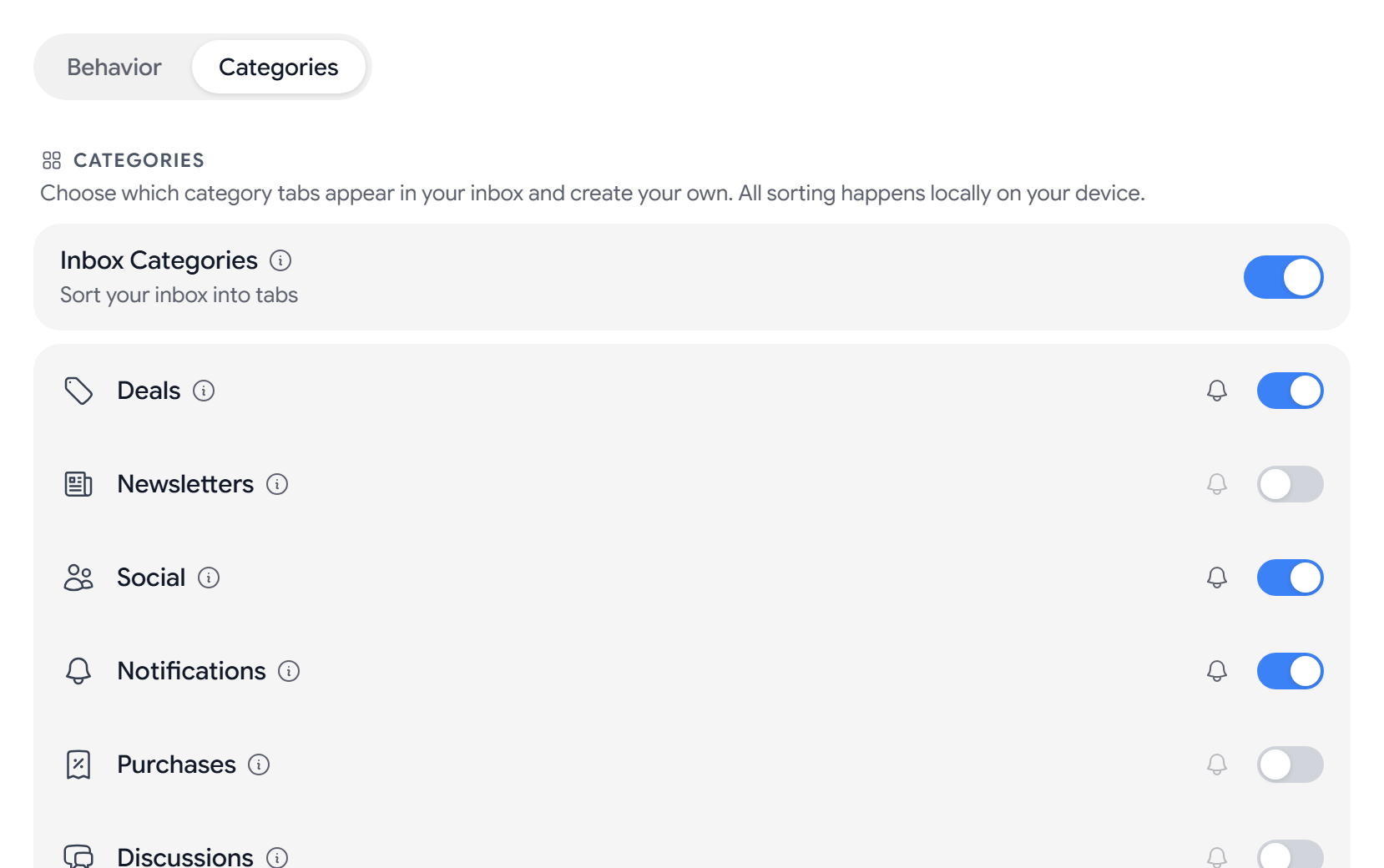
Inbox is always on. Deals, Social, and Notifications are on by default. You can also turn on Newsletters, Purchases, Discussions, Finance, Travel, and Shopping.
Aster Mail sorts messages into categories on your device after it decrypts them.
Create a custom category
To group mail for a project, a client, or a hobby, create your own category.
- Go to Settings > Reading & Conversations and select the Categories tab.
- Under Custom Categories, select Add Category.
- Enter a name, and choose an icon and a color.
- Under Match sender domains, add the domains whose mail belongs in the category. Under Match subject keywords, add words that appear in the subject line.
- Click Create. A category needs at least one domain or keyword before it saves.
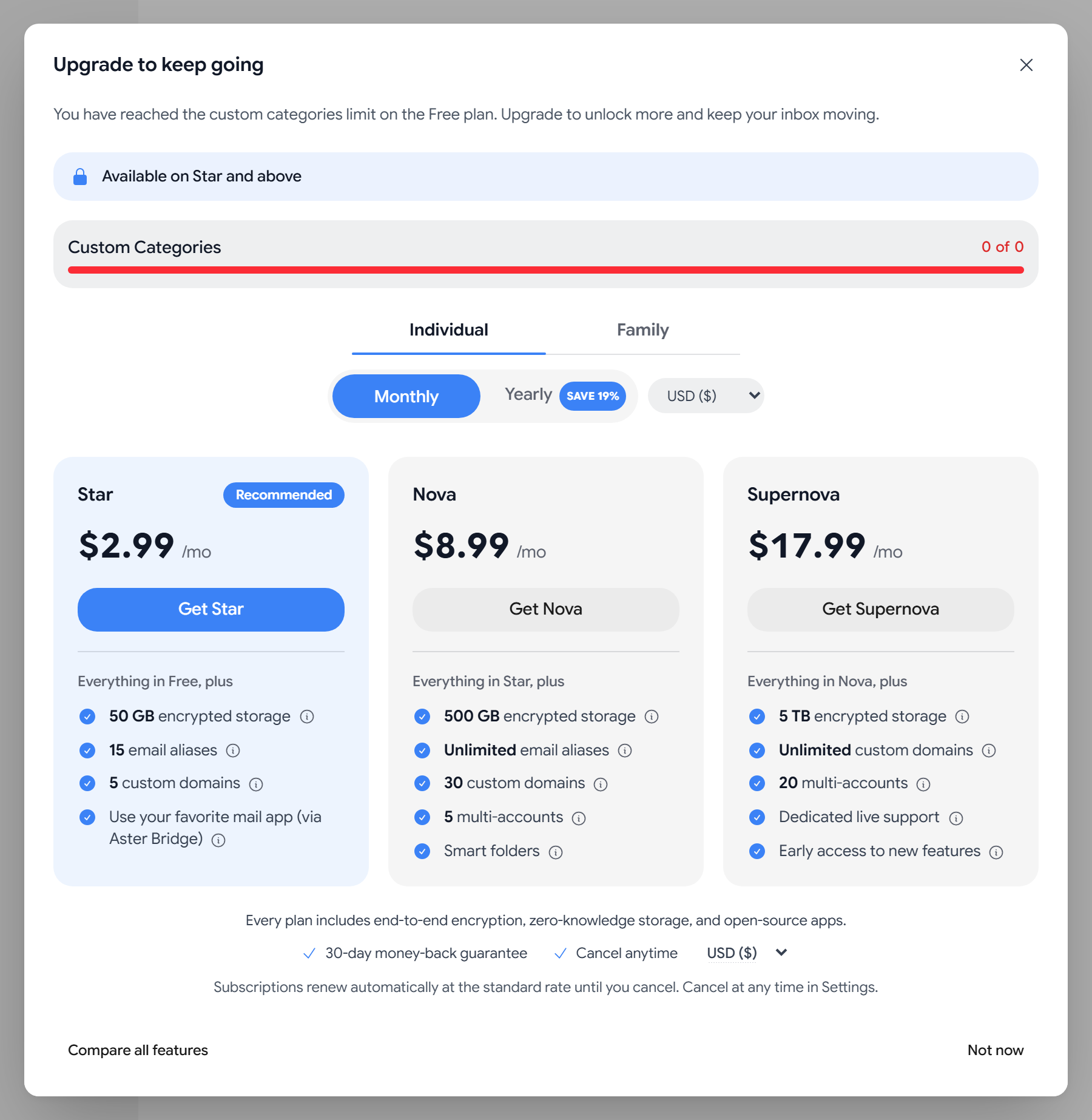
When a message matches a custom category, the custom category takes priority over the built-in ones.
| Plan | Custom categories |
|---|---|
| Free | None |
| Star | 1 |
| Nova and Duo | 3 |
| Supernova and Family | Unlimited |
Create folders and labels
- In the sidebar, select Create folder next to Folders, or Create label next to Labels.
- Enter a name and save it.
To create a folder inside an existing one, open the folder’s menu and select Create Subfolder.
Move mail into folders
- Drag a message onto a folder or label in the sidebar.
- Or select one or more messages, then select Add to folders in the toolbar and choose the folders.
Sort new mail automatically
Mail rules act on incoming mail as it arrives. A rule can match the sender, recipients, subject, and more, and then move the message, label it, star it, or mark it as read.
To create a rule, go to Settings > Mail Rules and select New rule. For step-by-step instructions, see Filter mail with rules.
Archive instead of delete
Select Archive to take a message out of your inbox and keep it in Archive. Search still finds it, and it also appears in All Mail.
Select Delete only for mail you never want back. Deleted messages go to Trash and are permanently deleted after 30 days. Until then, you can open Trash and move a message back.
Put mail aside for later
To deal with a message later, snooze it. The message leaves your inbox and returns at the time you choose. For details, see Schedule sending and snooze mail.
Tips
- Use folders for where a message belongs, and labels for how you want to find it later, such as “Receipts” or “Waiting for reply”.
- When the same kind of message keeps arriving, create a rule for it instead of sorting it by hand.
Related articles
המאמר הזה עזר לך?