





הפעלת אימות דו-שלבי
Protect your account with a six-digit code from an authenticator app, in addition to your password.
With two-factor authentication (2FA) on, someone who learns your password still can’t sign in without the code.
Before you begin
- Install an authenticator app on your phone. Aster Authenticator works, and so does any app that supports time-based one-time passwords (TOTP).
- Have a safe place ready for your backup codes, such as a password manager outside your Aster mailbox or a sheet of paper.
Turn on 2FA
-
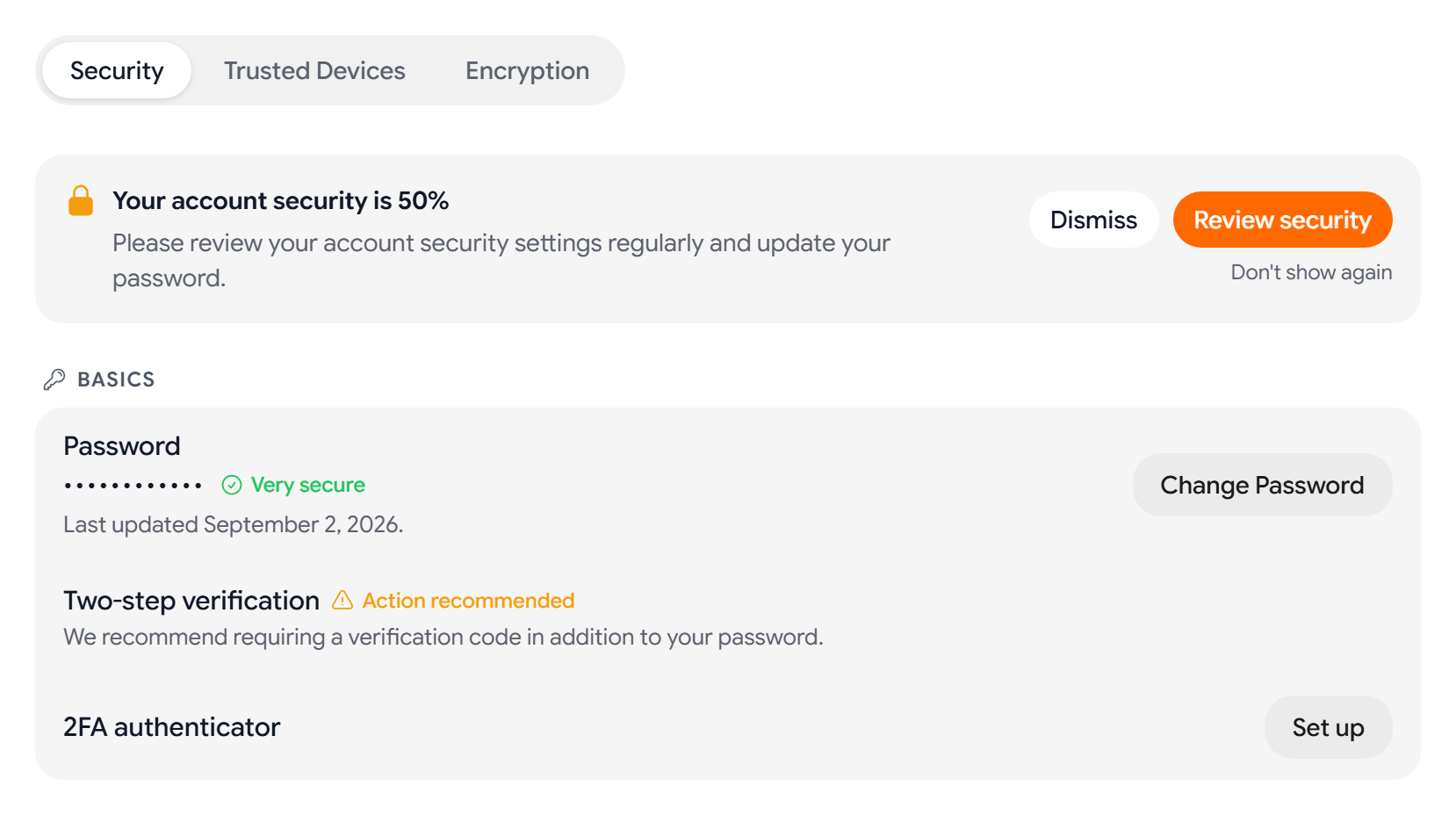
In Aster Mail on the web or desktop, go to Settings > Security. On the Security tab, find Two-step verification in the Basics section.
-
Next to 2FA authenticator, select Set up. The Enable 2FA panel opens.
-
Scan the QR code with your authenticator app.
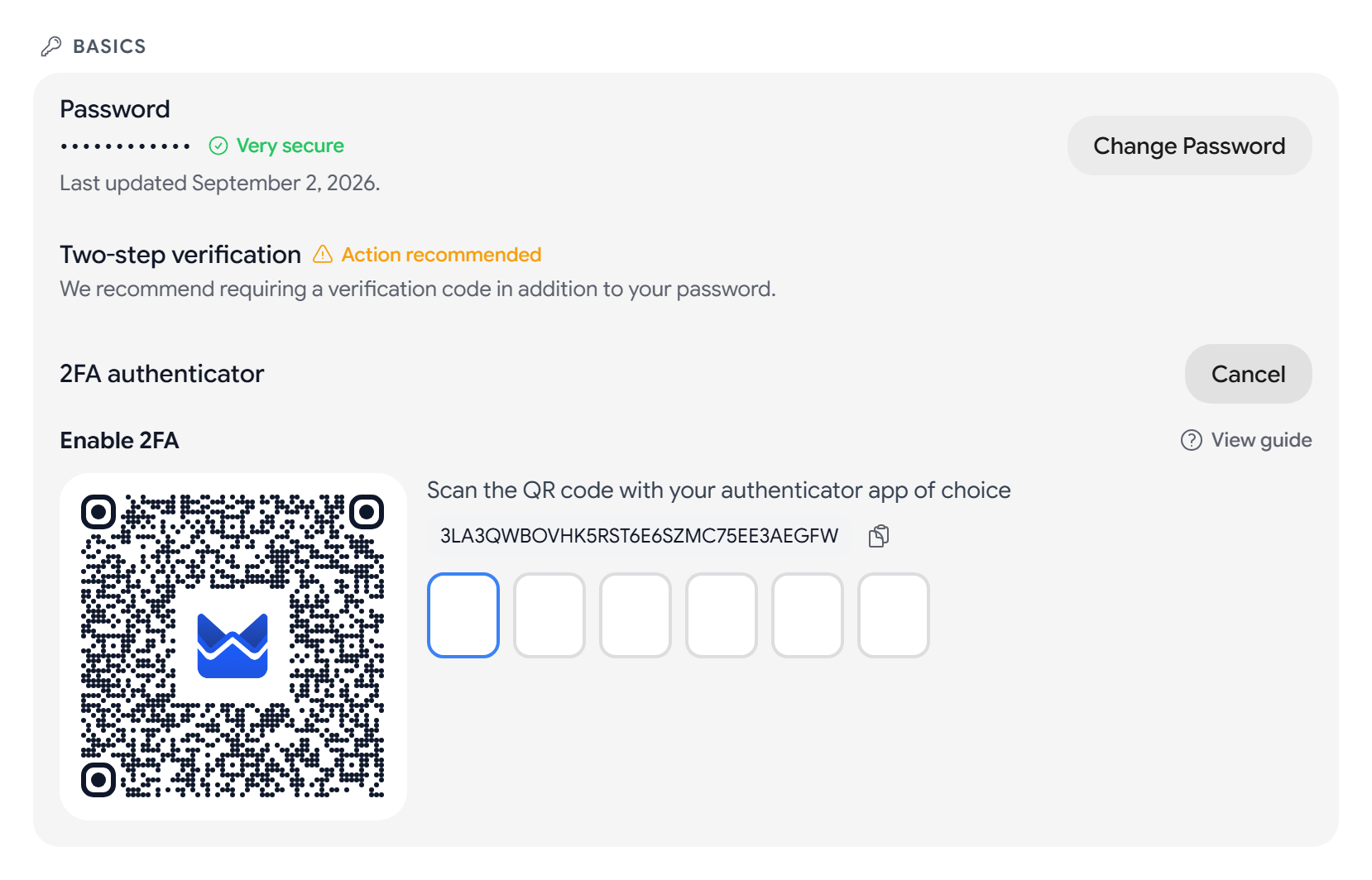
If you can’t scan the code, select the secret key next to it to copy it, and then paste it into your authenticator app.
-
Enter the six-digit code from your app. Aster checks it as soon as you finish typing.
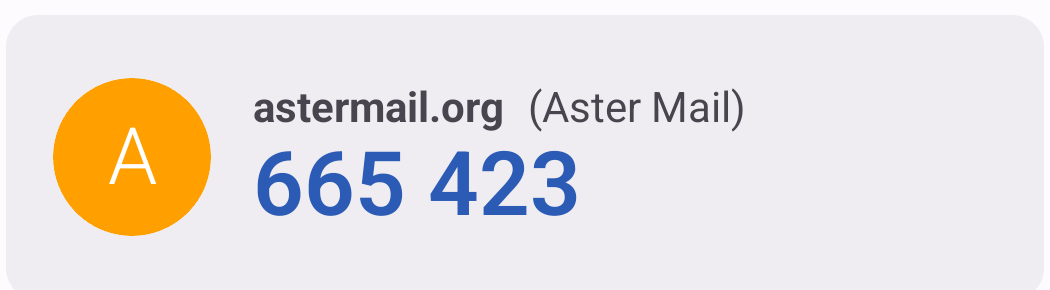
When the code is accepted, Two-Factor Authentication Enabled appears. Aster also signs you out on your other devices. To use them again, sign in with your password and a code.
Android
In the Aster Mail app, go to Settings > Security, and then tap Two-factor auth. The steps are the same as on the web.
Save your backup codes
The confirmation screen shows ten single-use backup codes. Each one signs you in once when you don’t have your authenticator app.
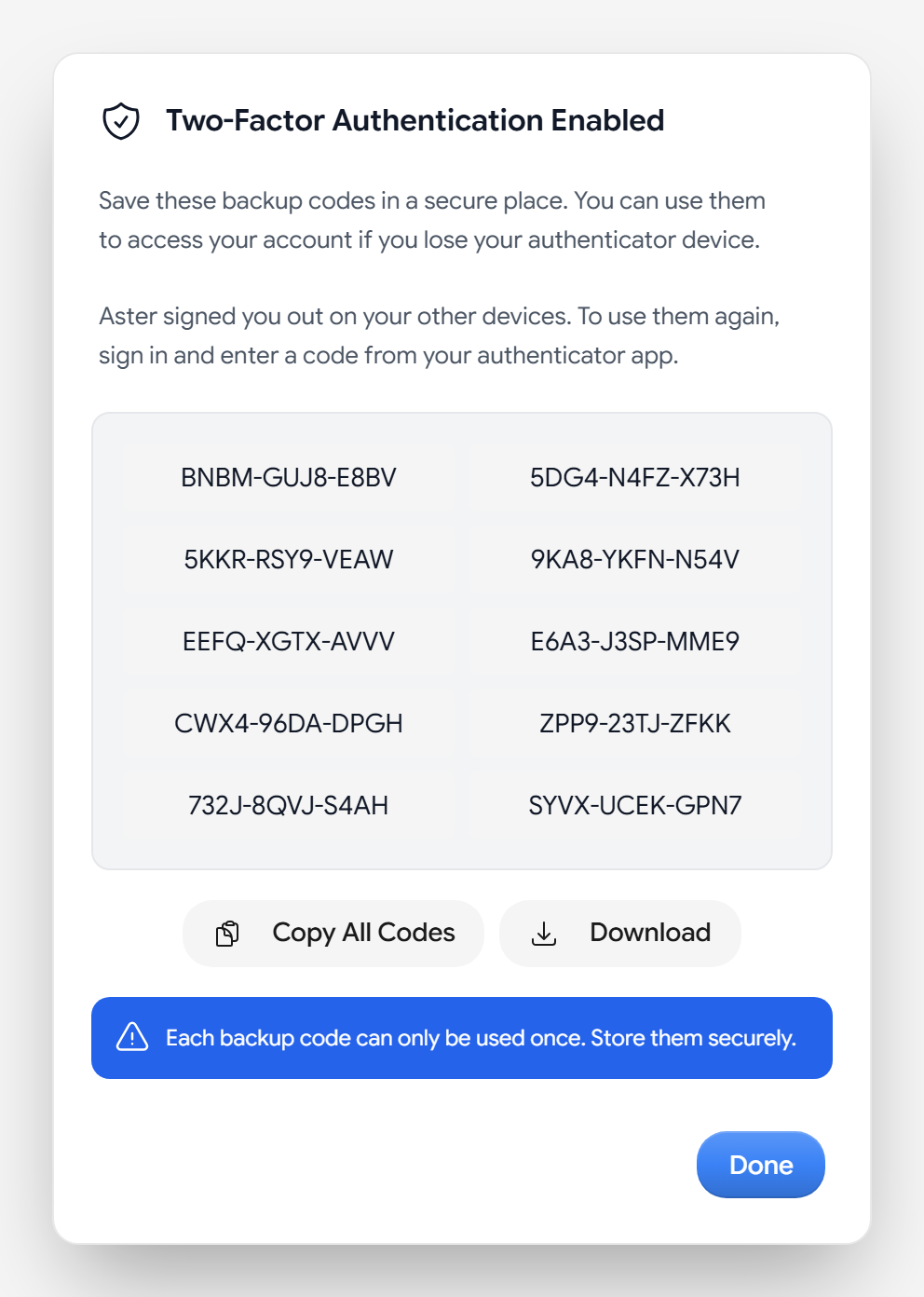
- Select Copy All Codes or Download.
- Store the codes in a password manager or print them. Don’t keep them only in your Aster mailbox, because you need them when you can’t open it.
- Select Done.
To replace your codes, go to Settings > Security, find Backup Codes, and select Regenerate backup codes. Enter a code from your authenticator app. Aster creates ten new codes, and the old ones stop working.
Backup codes are different from account recovery codes. A backup code replaces a 2FA code at sign-in. A recovery code restores your account and your encrypted data if you forget your password.
Sign in with 2FA
After you enter your password, Aster asks for the code from your app.
- To sign in without your app, select Use a backup code instead, and then enter a backup code.
- To skip the code on a device you use often, select Trust this device for 30 days. Choose this only on a device that belongs to you.
Trusted devices appear under Trusted 2FA devices on the Security tab. Changing your password removes every trusted device.
Turn off 2FA
- Go to Settings > Security.
- Turn off the switch next to 2FA authenticator.
- Enter your password and a code from your authenticator app or a backup code.
If you lose your phone
- Sign in with your password, select Use a backup code instead, and enter a backup code.
- Go to Settings > Security and turn off 2FA, using another backup code to confirm.
- Select Set up again, and scan the new QR code with the authenticator app on your new phone.
- Save the new backup codes.
If you have neither your phone nor a backup code, see Recover your account.
Troubleshooting
- Aster says the code is wrong: Make sure you’re reading the code for your Aster account, and enter it before it changes. Turn on automatic date and time on your phone, because codes depend on the clock.
- You entered too many wrong codes: After five wrong codes, Aster locks 2FA verification for 15 minutes. Wait, and then try again with a new code.
- The QR code won’t scan: Copy the secret key and add the account in your app by hand.
- You lost your backup codes but still have your app: Sign in, and then select Regenerate backup codes.
Related articles
המאמר הזה עזר לך?