





Storage settings
To see how much storage you use, go to Settings > Storage. You can free up space and buy more storage from the same page.
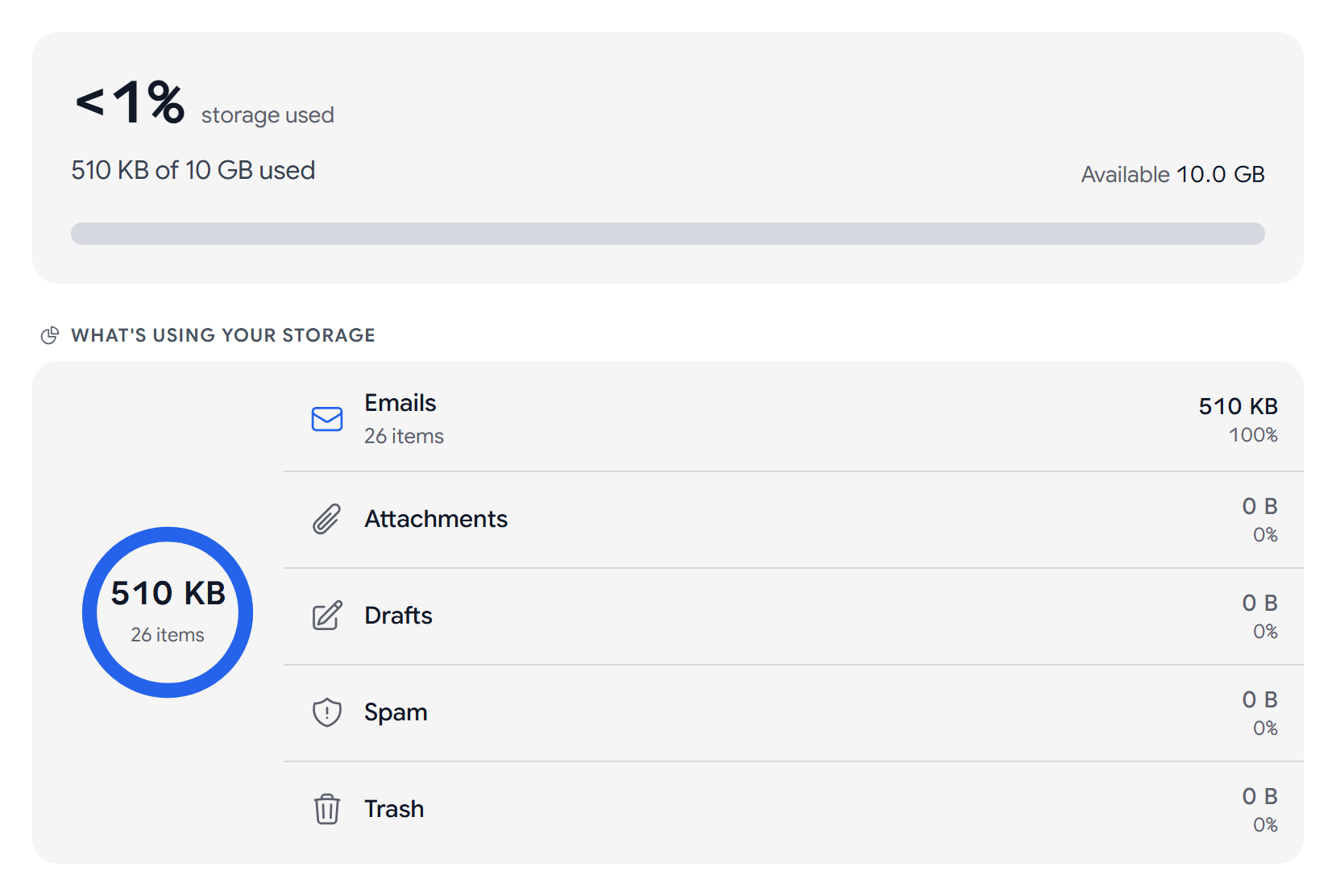
Storage used
Storage used shows how much of your storage is full and how much is Available. The bar shows where your storage comes from: Included with your plan, From add-ons, and Family allocation on a family plan.
Capacity lists each of these with its size, and your Total capacity.
Free up space
What’s using your storage shows the size of your Emails, Attachments, Drafts, Spam, and Trash.
- Select Empty spam or Empty trash.
- Aster shows how many messages it deletes and how much space that frees. Select Confirm.
Emptying Spam or Trash permanently deletes those messages.
If your storage is full
If you run out of space, new mail pauses until you free up space or add more storage. The mail that you already have is safe.
Buy more storage
- Under Additional Storage, select a size.
- Select Buy More Storage.
- Choose Card, which renews every month, or Crypto, which you prepay for 1, 3, 6, 12, or 24 months.
- Complete the payment.
If a discount is running, a Save on extra storage card appears with a See add-ons button. The discount applies to your first storage add-on only.
If you have account credit, Aster applies it at checkout. See Pay with cryptocurrency.
Canceling an add-on. Under Your Active Add-ons, select Cancel, then Cancel Storage Add-on. The storage stays until the end of the billing period.
Storage format
- Aster Server keeps your encrypted mail on Aster’s servers. It is the default.
- Decentralized (IPFS) stores your encrypted files across many independent nodes instead of one server.
Only your keys can decrypt your data either way.
Related articles
Was this article helpful?