





Forward mail automatically
To forward email automatically, go to Settings > Mail Rules > Auto-Forward > Add Rule. Auto-Forward is on the Star plan and up.
Forwarding rules check only the sender, the recipient, and the subject. They never read the content of your messages.
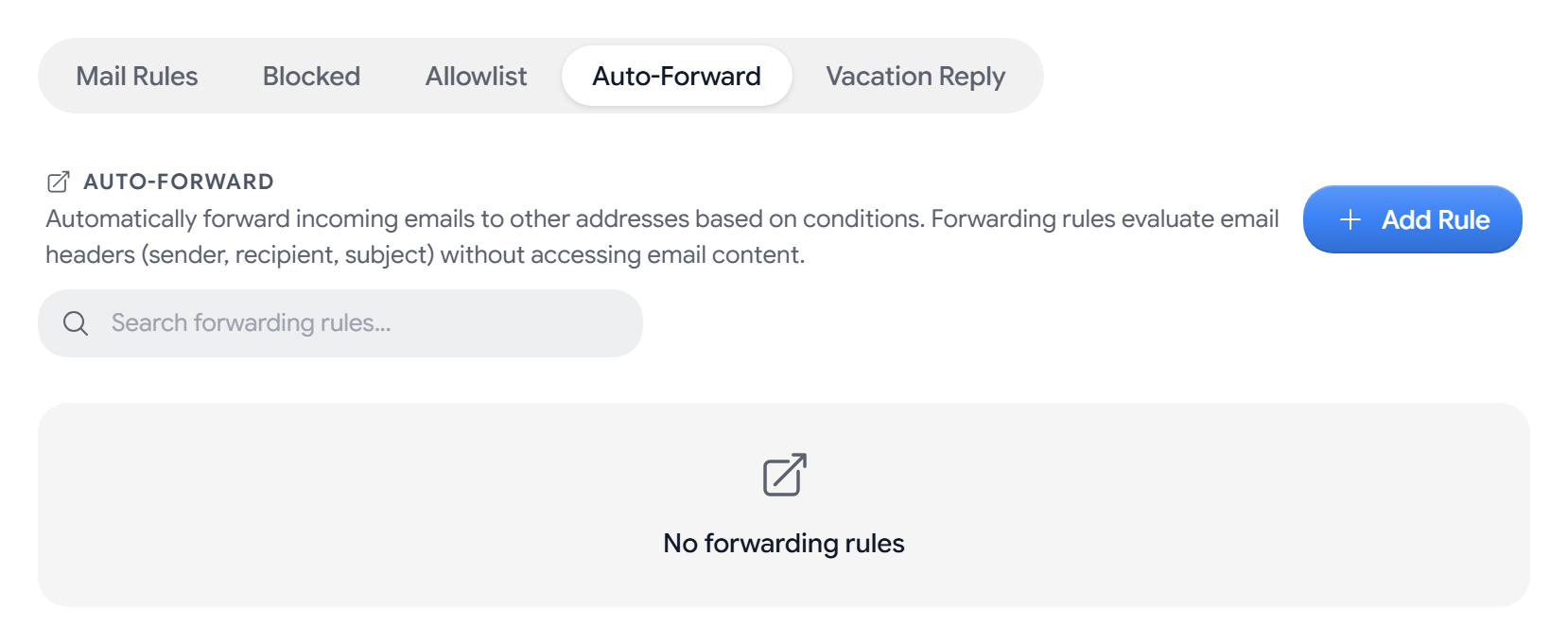
On the Free plan, the tab shows an upgrade card instead of Add Rule.
Create a forwarding rule
- Select Add Rule. The Create Forwarding Rule window opens. You can give the rule a name, such as Work emails.
- Under Conditions, keep All emails, or choose From, To, or Subject with contains, equals, starts with, ends with, or matches regex.
- Under Forward to, enter the address. Select Add another address to forward to more than one.
- Select Save Rule.
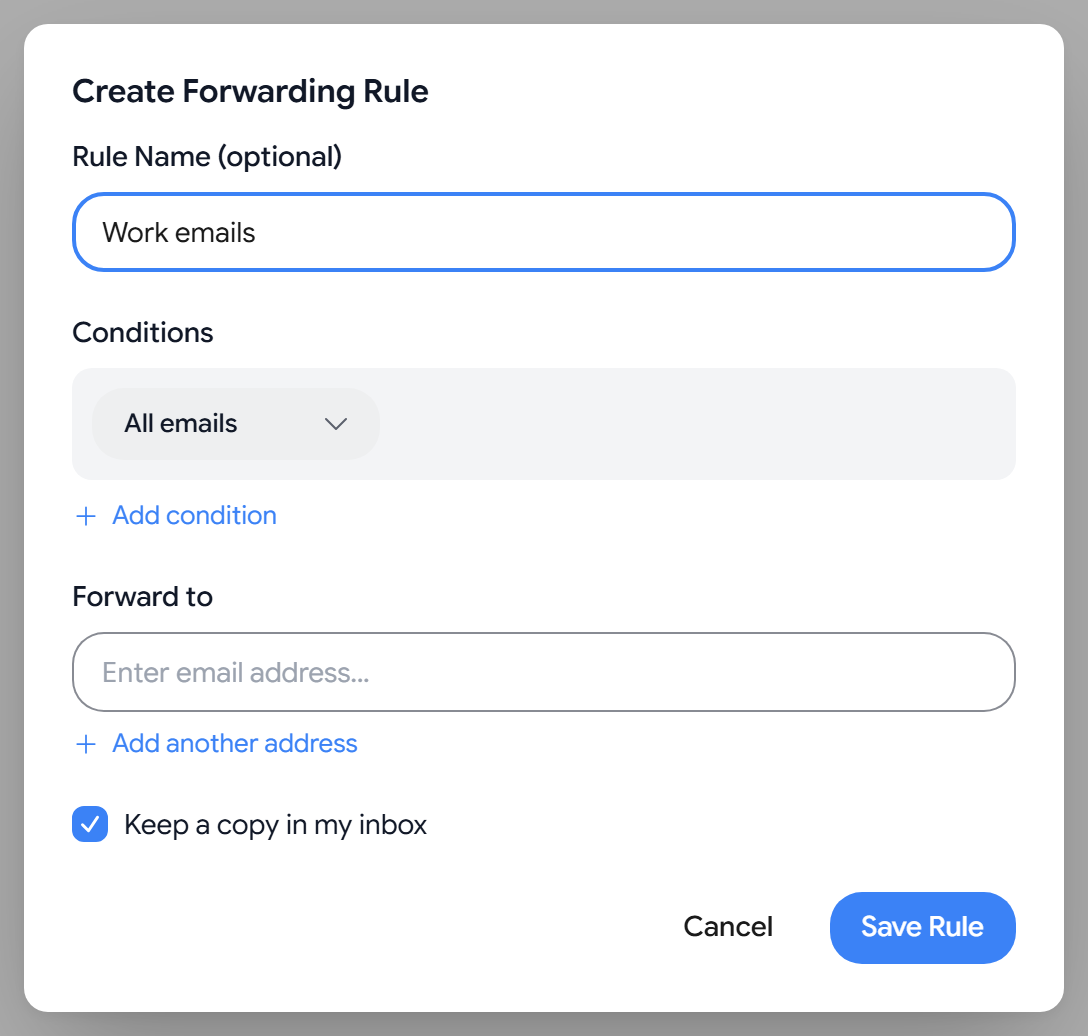
- Conditions. Aster forwards a message only when it matches every condition. A rule can have up to 20.
- Addresses. A rule can forward to up to 10 addresses.
- Keep a copy in my inbox. This is on by default. If you turn it off, forwarded mail doesn’t stay in your Aster mailbox.
Verify the address you forward to
Aster sends a verification email to every address outside Aster. Forwarding to that address starts after someone opens the link in the email. Until then, the rule shows Pending verification.
- Email didn’t arrive. Select Resend verification email.
- Aster addresses. These don’t need verification, so forwarding starts right away.
Check whether a rule is working
Each rule shows Active or Paused, how many messages it has forwarded, and when it last forwarded one. If forwarding fails, the rule shows Not delivering with the last error.
If you turned on Require encryption, Aster forwards only to addresses that have a public key. To fix a rule that shows Not delivering for this reason, add the recipient’s public key or turn off Require encryption. See How to export your PGP key and change encryption settings in Aster Mail.
Pause or remove a rule
- Editing. Select Edit, make your changes, and select Save Rule.
- Pausing. Select Disable, and select Enable to turn it back on.
- Removing. Select Remove and confirm. You can also select several rules and remove them at once.
To reply automatically while you’re away, use the Vacation Reply tab. See Set a vacation responder.
Related articles
Was this article helpful?