





Family plan settings
To manage your family plan, go to Settings > Billing > Family. The Family tab shows only on a Duo plan, which covers 2 people, or a Family plan, which covers up to 6. As the owner you get the Overview, Members, Kids, Shared Mailboxes, Groups, Activity, Filters, Domains, Security, and Data Retention tabs. Members see Overview and Groups.
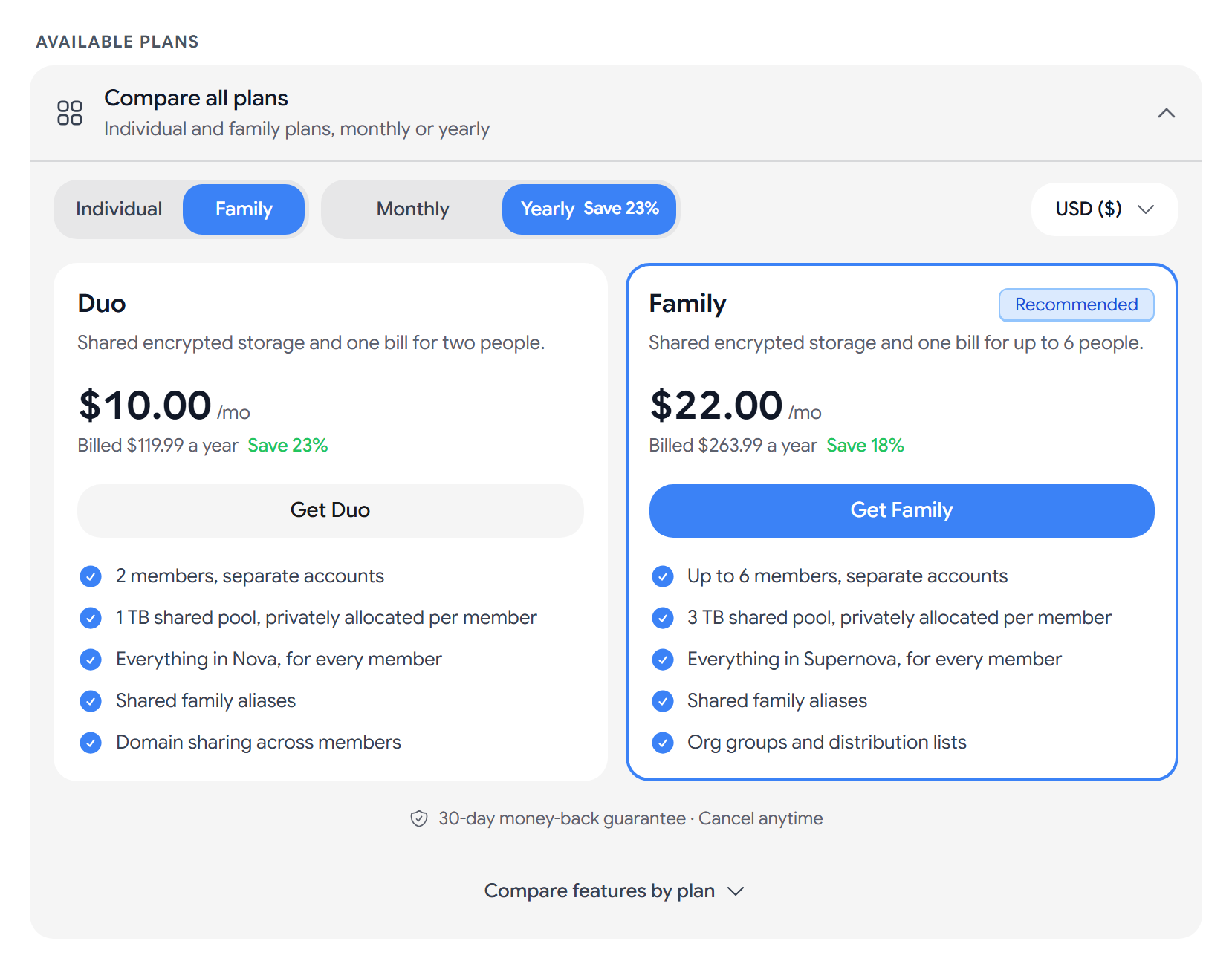
Each member has their own encrypted account. As the owner, you cannot read a member’s mail.
Overview
Overview has three tiles: Members, Storage used, and Unassigned. It also shows how many members have two-factor authentication turned on. If you are on Duo and both seats are in use, select Upgrade to move to a Family plan. If you are a member rather than the owner, Leave Family Plan shows here.
Invite a member
- On the Members tab, select Add member, and enter their email address.
- Under Storage for this member, choose how many GB they get.
- Complete the captcha and select Send Invite, or select Copy Link to share the invite yourself.
Each invite lasts 7 days, and Revoke withdraws one.
- Edit Storage changes a member’s share of the storage.
- Transfer Admin makes a member the owner, and they take over billing.
- Remove Member takes a member off the plan. They keep access for 30 days, and their mail stays with them.
A member who wants to leave selects Leave Family Plan on the Overview tab.
Reserve an address for your kids
Kids holds an address for your child now, so they can finish setting it up later with their own password.
- Select Reserve an address, and enter the Address. Aster checks it and shows Available or Already taken.
- Add a Nickname (optional) and choose Storage for this address.
- Confirm that you are the child’s parent or legal guardian, and select Reserve.
Aster copies a claim link for you. Anybody with the link can set up the address, so share it only with your child. Each reservation offers Copy claim link, Regenerate link, Set up now, and Release, and shows Reserved until your child claims it.
Shared mailboxes
On the Shared Mailboxes tab, a shared mailbox is an address, such as family@astermail.org, that everybody with access can read and send from.
- Enter the address and select Create.
- Under Who can use this mailbox, select Give access next to each member.
- Removing someone. Select Has access next to their name. The mailbox then shows Update access. Select Renew keys, so they can’t open new mail.
- Deleting the mailbox. Select Delete mailbox. The address stops receiving mail and can’t be registered again.
A mailbox marked Frozen can’t be opened.
Groups
A group gives several members one shared address. Enter a Group name, add a Prefix and a domain for its address, and select Create. To change who is in it, select Add member or Remove.
Activity and filters
- Activity logs every admin action, such as invites and policy changes.
- Filters run on every member’s incoming mail. Select New filter, enter a Filter name, choose a Condition and an Action, and select Create filter. A condition matches From, To, Subject, Domain, or IP, and an action can tag, archive, trash, block, or redirect the message.
Share a custom domain
Under Domains, select Share next to a domain, choose members, and select Done. A domain marked Unverified cannot be shared, so verify its DNS records first.
Security rules
- Require two-factor authentication makes members set up two-step verification.
- Grace period for new members sets how many days they have to do it.
- Max active sessions per member signs out the oldest session when a member goes over.
- Auto sign-out after signs members out after the hours without activity that you enter.
Select Apply Changes, then Apply. If the change needs member consent, the button reads Request consent instead. Member Compliance lists each member with a 2FA or No 2FA badge, and an IMAP badge when they use a mail client. Send reminder works once every 24 hours.
Data retention
Data Retention deletes old Trash, Spam, Sent, and All Mail after the number of days that you set. If you turn on Enforce on all members, members cannot override it.
Member consent
If you change filters, security rules, or enforced retention, Aster asks every member for consent first. Select Send consent request. The change takes effect only after every member accepts it, and each member sees the request under Admin consent requests with Accept and Decline.
Related articles
Was this article helpful?