





إعدادات تسهيلات الاستخدام
To change the text size in Aster Mail, go to Settings > Appearance > Accessibility and drag the Font Size slider. Every option on this tab applies right away.
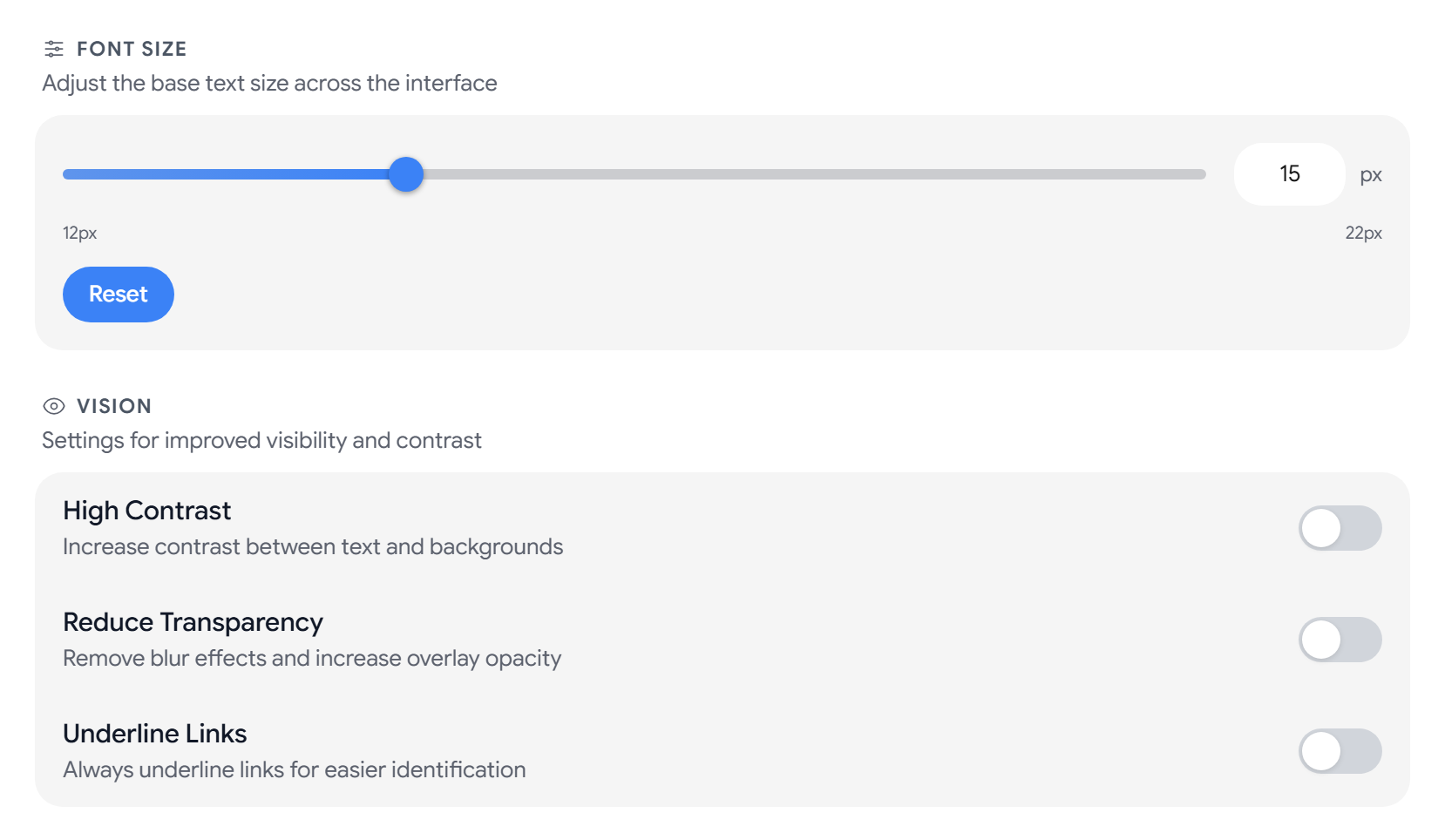
Change the text size
Font Size goes from 12 px to 22 px, and the default is 15 px. You can also type a value in the box next to the slider, or select Reset to go back to 15. The text size applies to the messages that you read too.
Make text easier to see
- High Contrast increases the contrast between text and backgrounds.
- Reduce Transparency removes blur effects and makes overlays more solid.
- Underline Links always underlines links, so you do not have to rely on color to spot them.
Make text easier to read
- Dyslexia-Friendly Font switches the app to OpenDyslexic.
- Text Spacing increases the line height, letter spacing, and word spacing.
Reduce motion
- Reduce Motion cuts down animations and transitions.
- Compact Mode shows more content with less spacing.
Turn keyboard shortcuts on or off
Enable shortcuts turns keyboard shortcuts on or off across the app. To see every shortcut, select the question mark button next to Keyboard Shortcuts, or read Keyboard shortcuts.
Use Aster on a slow connection
Low Network Mode, under Performance, skips everything that is not essential, so Aster stays usable on a slow or metered connection. When it is on, Aster will:
- Not load profile pictures, sender logos, favicons, or external images in messages.
- Not preload messages, load custom fonts, show attachment previews, or play notification sounds.
- Show every message as plain text.
- Show up to 4 messages in a conversation.
Low Network Mode turns on by itself if your device reports a 2G connection or has data saver on. To turn the setting on or off from a link inside Aster Mail, add ?low_bandwidth=1 or ?low_bandwidth=0 to the end of the URL. If your messages show as plain text and images are missing, turn off Low Network Mode.
Related articles
هل كانت هذه المقالة مفيدة؟