





استعادة حسابك
Get back into your account after you forget your password, using a recovery code, a recovery phrase, or a recovery email.
Your mail is encrypted with keys that only your password or a recovery code unlocks. Aster support can’t reset your password or decrypt your mailbox for you. What you get back depends on the method you set up in advance: a recovery code or recovery phrase restores everything, and a recovery email restores access without your old mail.
Before you begin
To check which recovery methods you have while you’re signed in, go to Settings > Security and find Account Recovery. The status reads Full restore protected if you have an offline recovery method, or At risk: no offline recovery method if you don’t.
- Recovery codes: Six one-time codes in the format
ASTER-XXXX-XXXX-XXXX-XXXX. Each code restores your account and all your encrypted data. - Recovery phrase: 12 words that older accounts received. It still works.
- Recovery email: An address outside Aster that can receive a reset link. You add it in Settings > Account.
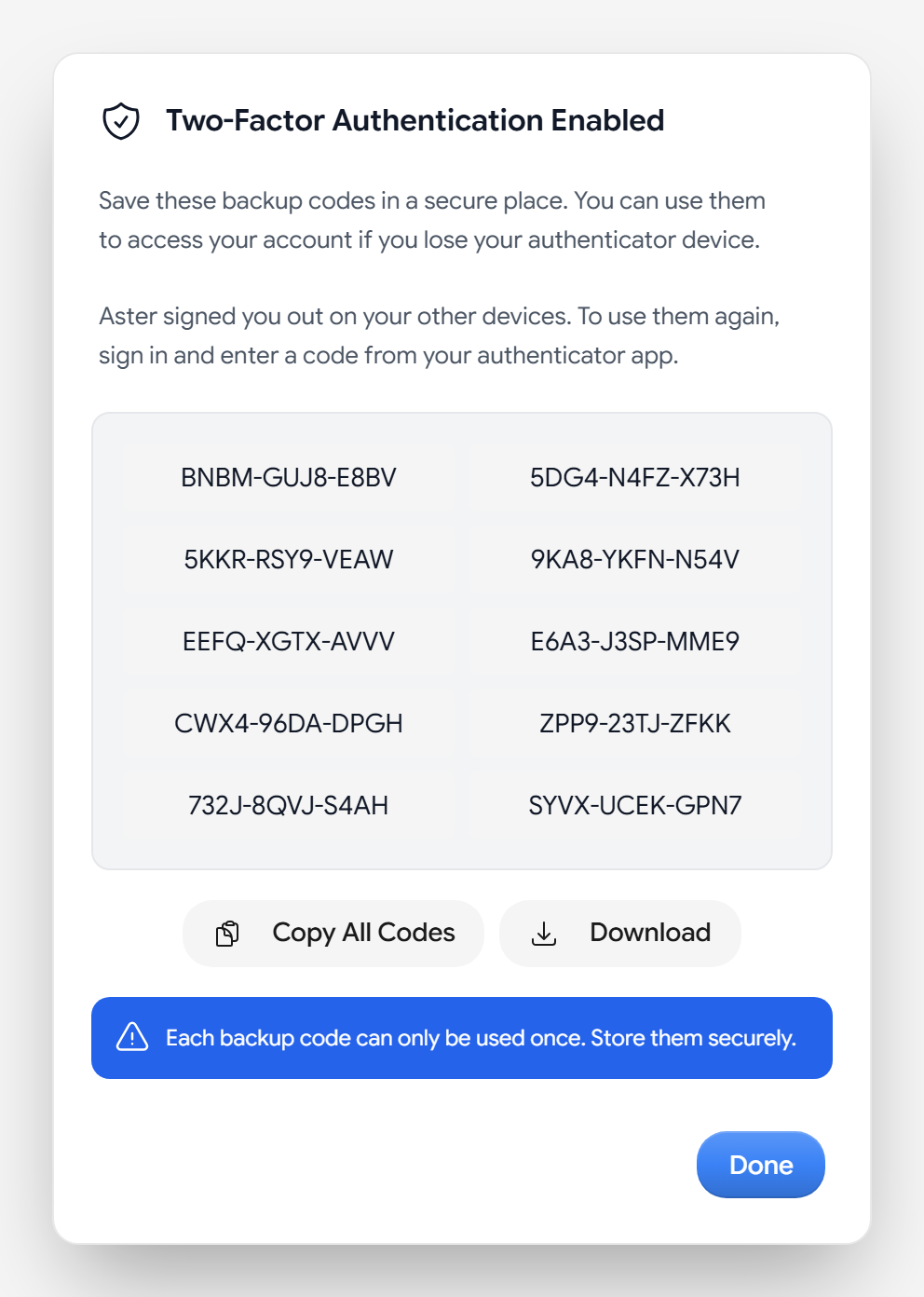
Recovery codes aren’t the same as two-factor backup codes. Backup codes only replace a two-factor code when you sign in.
Restore everything with a recovery code or phrase
- Go to app.astermail.org, and on the sign-in screen, select Forgot password?.
- Enter your username.
- In How do you want to recover your account?, select Use a recovery code or Use my recovery phrase.
- Enter the code or the 12 words, and then set a new password.
- Keep the window open while Aster restores your keys.
- In Save your new recovery codes, save the new set. Your old codes stop working after a recovery.
Your mail, contacts, labels, and settings all come back.
Regain access with a recovery email
Use this option only if you don’t have a recovery code or phrase. You keep your address, aliases, subscription, and account, but you lose access to your old encrypted mail, contacts, alias labels, and settings.
- On the sign-in screen, select Forgot password?, and then enter your username.
- Select Email me a reset link. Aster sends a link to your verified recovery email. The link expires in 30 minutes.
- Open the link and read This reset cannot decrypt your old data.
- To confirm, select the checkbox, enter your email address, and select Reset password anyway.
- Set a new password.
Unlock older data after a reset
If you remember your old password after a reset with a recovery email, you can bring your old mail back.
- Go to Settings > Security and find Recover older data.
- Select Unlock older data, and then enter your old password.
If you’re sure you won’t find the old password, select Discard older data.
If you have no recovery method
Without your password, a recovery code, a recovery phrase, or a recovery email, nobody can decrypt the mail in the account, including Aster. You can still ask Aster to release the address so that you can create a new account with it. To start, go to Can’t sign in?.
Create new recovery codes
To avoid losing access in the future, keep a current set of recovery codes.
- Go to Settings > Security and find Account Recovery.
- Select Get codes, or Get new codes if you already have a set.
- Enter your Password. If you use two-factor authentication, also enter an Authenticator Code.
- Select Download PDF, Download as Text, or Print, and store the copy outside your Aster mailbox.
- If you replaced an earlier set, select I saved these codes, and then select Done.
Getting new codes permanently cancels your old set. Also add a recovery email in Settings > Account. One recovery email can protect up to 20 Aster accounts.
Troubleshooting
- The reset email doesn’t arrive: Check the spam folder of your recovery email, and make sure the address was verified before you lost access. If the link expired, request a new one from Forgot password?.
- Aster doesn’t accept your recovery code: Enter the whole code, including the
ASTER-prefix. Make sure you haven’t already used it or replaced the set. - Recovery is temporarily locked: After too many failed attempts, Aster locks recovery for a while. Wait, and then try again.
Aster support never asks for your password or your recovery codes.
Related articles
هل كانت هذه المقالة مفيدة؟