





Personalizar sua caixa de entrada
Change how your inbox looks and sorts mail, from the layout and theme to the category tabs.
Visual options are in Settings > Appearance. Options for reading and sorting mail are in Settings > Reading & Conversations.

Choose a layout
- Go to Settings > Appearance.
- Under Email view mode, choose how messages open:
- Popup opens a message in a window over the list.
- Split view puts the list and the message side by side.
- Full page replaces the list with the message, which suits narrow screens.
- To move the reading pane, go to Settings > Reading & Conversations > Behavior, find Reading pane position, and choose Right side, Bottom, or Hidden (click to open).
Choose a theme and density
- Go to Settings > Appearance.
- Choose System, Light, Dark, or Aster Blue. System follows your device’s light or dark setting.
- To see more color themes, such as Purple and Green, select Show more. Color themes, including Aster Blue, are dark themes, so choosing one switches the app to dark mode with that color as its accent. To return to a light app, choose Light or System.
- Under Density, choose Comfortable for more space, or Compact to fit more messages on screen.
The same screen sets the Font, the Email font, your Language, Time format, Date Format, Time Zone, and Compose window mode. For every option on this screen, see Appearance settings.
Your appearance choices sync across devices. To keep a different theme on one device, turn off Sync theme across devices on that device.
To show every message in dark colors, go to Settings > Reading & Conversations > Behavior and turn on Force Dark Mode for Emails.
Choose your category tabs
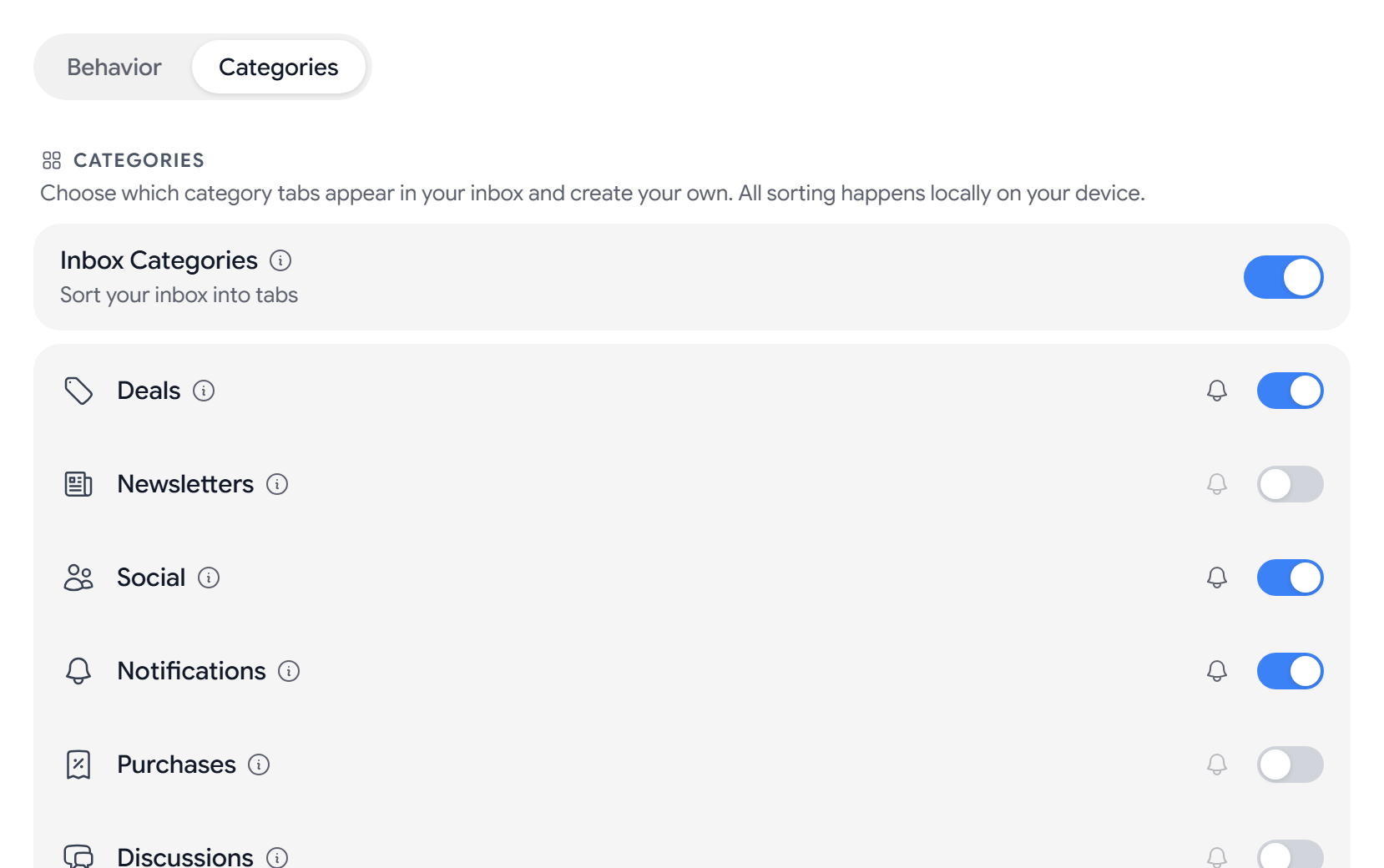
Categories sort incoming mail into tabs on your device, and they’re never sent to the server. The built-in categories are Deals, Newsletters, Social, Notifications, Purchases, Discussions, Finance, Travel, and Shopping. Deals, Social, and Notifications are on by default. Mail that doesn’t match a category stays in Inbox, which is always on. For details on each category, see Inbox categories.
To choose which tabs appear, go to Settings > Reading & Conversations > Categories.
To create your own category:
- In Categories, select Add Category.
- Enter a Name, and choose an Icon and a Color.
- Under Match sender domains, enter domains separated by commas, such as
example.com. - Under Match subject keywords, enter words separated by commas.
- Save the category.
A custom category matches when the sender’s domain or the subject contains one of your terms. Custom categories are checked before built-in ones.
Set reading options
Go to Settings > Reading & Conversations > Behavior. From there, you can:
- Choose when a message counts as read with Mark as Read: Immediately, After 1 second, After 3 seconds, or Never (manual only).
- Turn Conversation Grouping on or off, and set the Conversation Order.
- Set Emails per page and what happens After Archiving or Deleting.
- Show or hide Sender pictures and Show Message Size.
For every option on the Behavior tab, see Reading and conversation settings.
To change the most common options without leaving your inbox, select Settings (the gear button) in the top bar of a wide window to open the quick settings panel. It sets the theme, density, and reading pane position, and it turns Conversation Grouping, Inbox Categories, Sender pictures, and Preview text on or off. Preview text, which shows a line of each message under its subject, is in this panel in the web app and in Settings > Reading & Conversations on the mobile app.
Block Remote Images is in Settings > Security and is on by default, because remote images can tell a sender that you opened a message.
Tips
- Custom Theme colors require a paid plan.
- The number of custom categories you can create depends on your plan. See Compare Aster plans.
- To silence a category without hiding its mail, mute it. See Set up notifications.
Troubleshooting
- A theme change doesn’t reach another device: turn on Sync theme across devices on both devices.
- A message is hard to read in dark mode: turn off Force Dark Mode for Emails.
- Aster doesn’t accept a custom category: add at least one domain or keyword.
- Mail lands in the wrong tab: create a custom category for that sender’s domain.
Related articles
Este artigo foi útil?