





Configurações de segurança
To change your password, turn on two-step verification, add a passkey, or sign out your other sessions, go to Settings > Security > Security. The section also has a Trusted Devices tab once you pair an Aster app, and an Encryption tab.
Security score
The card at the top of the page shows your account security as a percentage. Select Protection breakdown to see what counts toward it, or Review security to go to the settings that need attention. You can also open the Security Center from the app rail.
Change your password
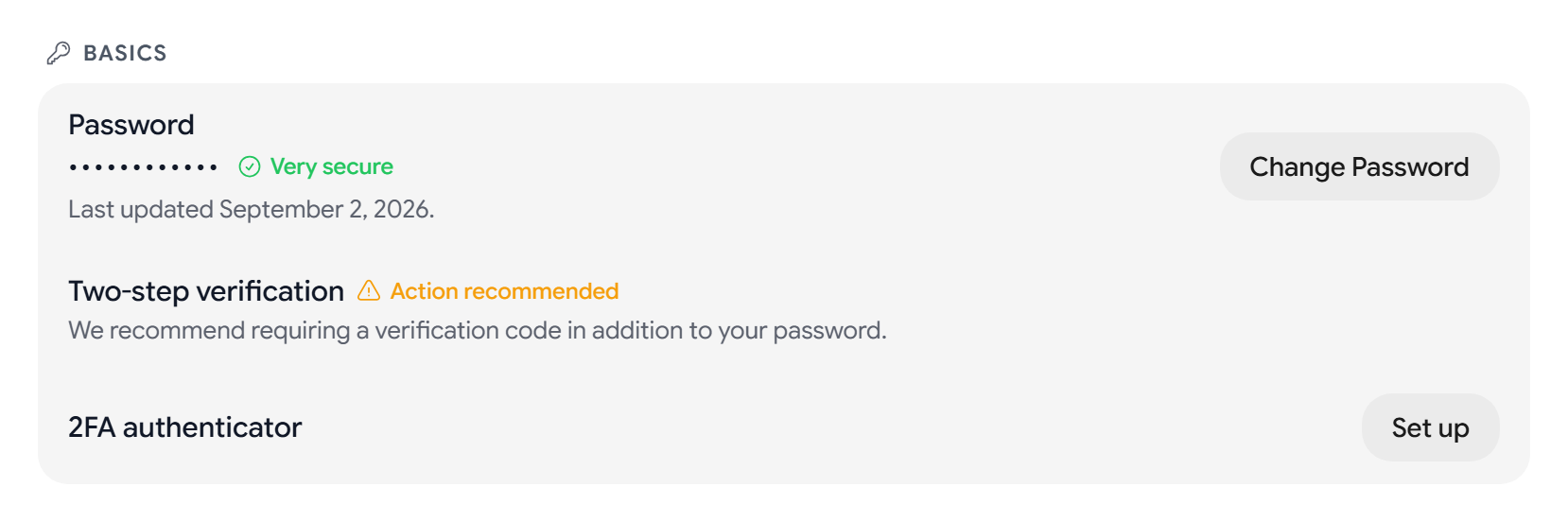
- Select Change Password.
- Enter your Current Password, your New Password, and Confirm New Password.
- Select Update Password.
Aster re-encrypts your labels, signatures, and templates with your new password, and then signs you out. If your new password has shown up in a known data breach, Aster warns you as you type it.
Turn on two-step verification
- Next to 2FA authenticator, select Set up.
- Under Enable 2FA, scan the QR code with your authenticator app.
- Enter the six-digit code that it shows. Aster continues as soon as the code is complete.
- Save your 10 backup codes with Copy All Codes or Download, and select Done.
When you add a second sign-in factor, Aster signs out your other sessions. Each backup code works once, and you can replace them with Regenerate backup codes. See Turn on two-factor authentication.
Passkeys and security keys
- Add passkey lets you sign in with your device’s fingerprint, face, or PIN.
- Add security key adds a hardware key or password manager as a second factor.
- Rename or Delete changes or removes a key. Removing your last second factor asks for your password.
In the desktop app, you can view and remove keys, but you add new ones at app.astermail.org.
Sign out other sessions
Browsers and Devices lists every session that is signed in. Select Sign out next to one session, or Sign out all other sessions.
Trusted 2FA devices lists the devices that skip the two-step prompt for 30 days. Select Revoke on one, or Revoke all trusted devices. Changing your password also revokes all of them.
Login alerts and session timeout
- Session Timeout signs you out after a period of inactivity. Timeout Duration offers 5 minutes, 15 minutes, 30 minutes, 1 hour, 2 hours, 4 hours, and 8 hours. It is off by default.
- Login Alerts notifies you when a new device signs in to your account.
- Recent Sign-ins shows the latest sign-ins, with Show more once there are more than 10.
External link warnings
If you turn on External Link Warnings, Aster asks you to confirm before you open a link that leads outside Aster.
Forward secrecy
Forward Secrecy is off by default. If you turn it on, Aster rotates your encryption keys on a schedule, so a key stolen today can’t unlock older mail. The three controls below appear once it is on.
- Key Rotation Interval. Daily, Weekly, Biweekly, or Monthly. The default is Weekly.
- Key History Limit. How many old keys Aster keeps: 5 keys, 10 keys, 25 keys, or Unlimited. The default is Unlimited.
- Rotate Keys Now rotates your key right away.
A low Key History Limit can make older mail unreadable.
Account recovery
Account Recovery shows whether you can restore your account and your encrypted data if you forget your password. Select Get codes to create six recovery codes, Show codes to see the set you have, or Get new codes to replace it. Your current codes stop working as soon as you get new ones. See Recover your account.
Recover older data. This separate section appears only when your account has older key sets, such as after a reset. Select Unlock older data and enter your Previous password to get your older mail and aliases back. Discard older data can’t be undone.
Block trackers and remote images
- Enable Tracking Protection blocks tracking elements in the mail that you receive. While it is on, you can turn on Block Spy Pixels, and Clean Tracking Links shows Active.
- Block Remote Images is on by default. Remote Image Loading offers Never load, Ask before loading, and Always load.
- Block Remote Fonts and Block Remote CSS are on by default.
- Strip Image Metadata removes location and camera data from images before you send them.
- Block HTML Rendering shows every message as plain text.
Aster Vanguard
Enable Vanguard is on the Nova plan and up. It adds PIN App Lock, with Duress PIN inside it once app lock is on, and Enable Lockdown Mode. See How to turn on Aster Vanguard and Lockdown Mode.
Connection
- Direct connects your device straight to Aster servers.
- CDN Relay routes your requests through a global CDN first, so your IP address stays hidden from Aster. It shows only on builds that support it.
Your mail stays end-to-end encrypted either way.
Trusted Devices tab
The Trusted Devices tab lists each Aster app that you paired with your account. Select Revoke to sign one out and delete its local vault key, or Revoke all when you have more than one device. On a paid plan, the tab also has a Desktop Mail Client card with setup steps for your mail client. On the free plan it shows Use your favorite mail client and an Upgrade to Star button instead.
Related articles
Este artigo foi útil?