





Atualizações
To update the Aster Mail desktop app, go to Settings > Help > Updates and select Check for updates. The Updates tab is only in the desktop app, and in a browser Aster Mail loads the newest version when you reload the page.
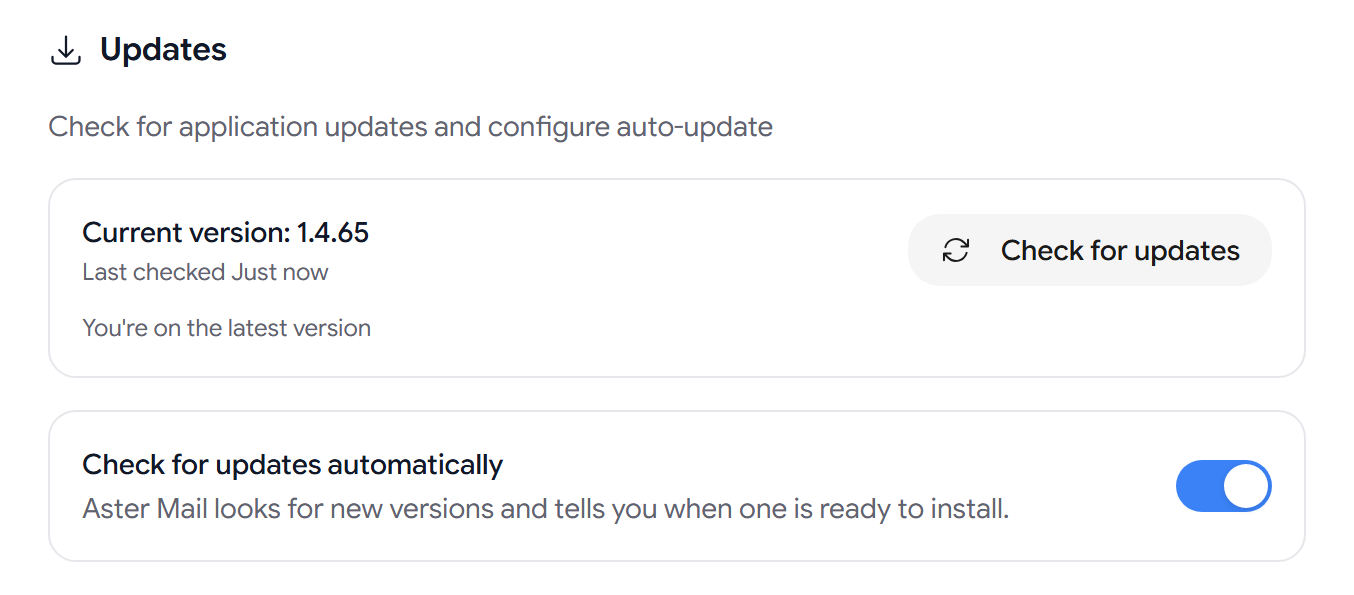
Check your version
Current version shows the version that you are on, and Last checked shows when the app last looked for an update.
Install an update
- Select Check for updates.
- If a new version is out, the app will show Update available with the version number. Select Release notes to see what is new.
- Select Install and restart.
The app restarts to finish the update, so save any message that you are writing first.
Update automatically
Check for updates automatically is on by default. Aster will look for new versions and tell you when one is ready to install. If you turn it off, check for updates yourself from time to time so you get security fixes.
If an update does not install
- “Checking for updates did not work”. Check your internet connection, and try again in a moment.
- “The update did not install”. Try again. If it still fails, download the newest version from astermail.org/download and install it over your current one.
Related articles
Este artigo foi útil?