





Hubungkan akun eksternal
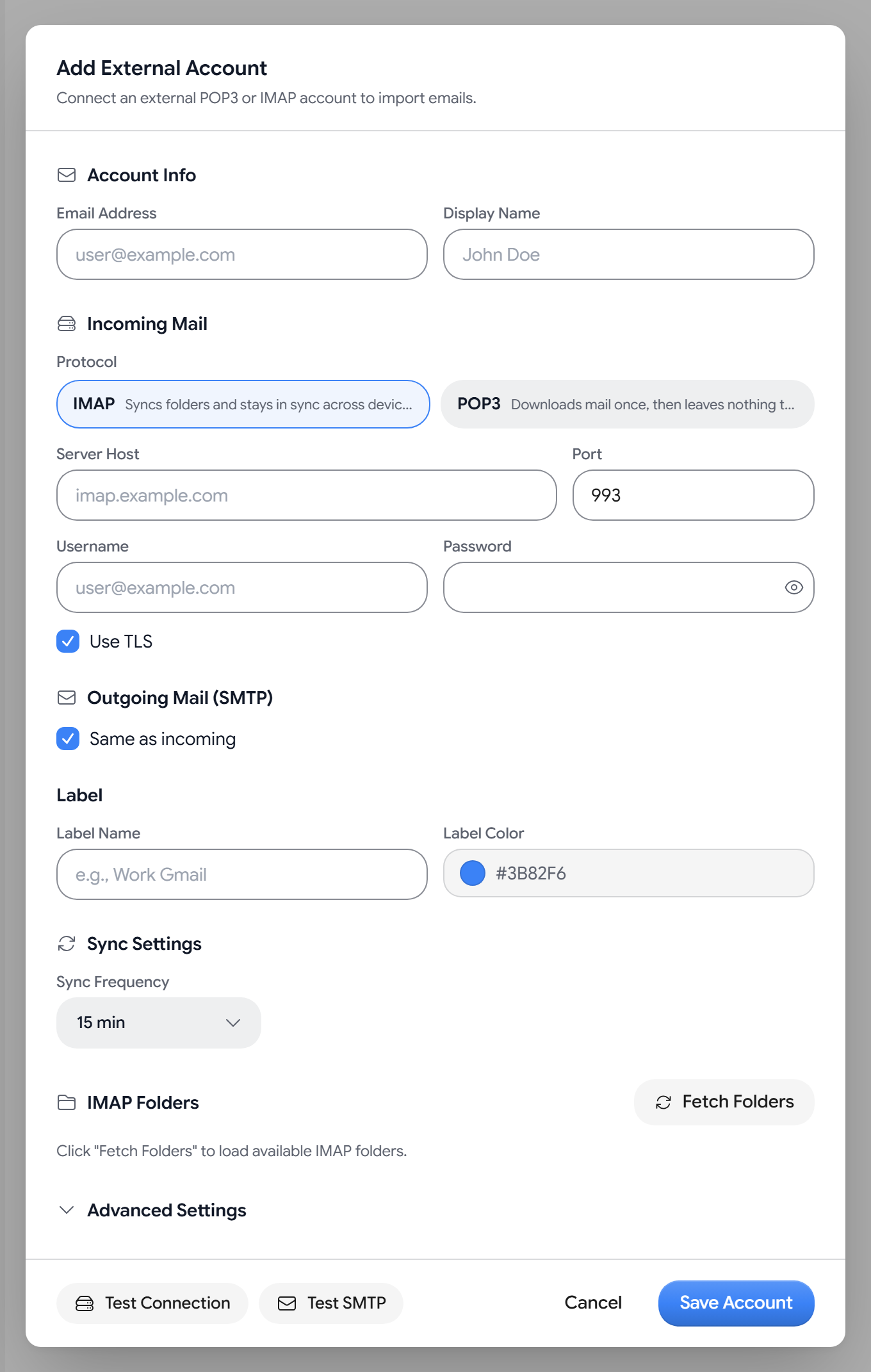
To add another email account, go to Settings > Import > External Accounts > Add Account. Aster fetches its mail over IMAP or POP3, and you can send from that address over SMTP.
The number of accounts that you can connect depends on your plan.
Before you start
Many providers do not accept your regular password from other apps. If your provider uses two-step verification, create an app password there and use it in Aster. For some providers, Aster opens a guided Connect your mailbox setup that walks you through this.
Add an account
- Select Add Account, and enter the Email Address and an optional Display Name.
- Under Incoming Mail, choose IMAP, which keeps your folders in sync, or POP3, which downloads mail once.
- Check the Server Host, Port, Username, and Password. For many addresses, Aster fills in the server settings for you.
- Select Test Connection.
- Under Outgoing Mail (SMTP), keep Same as incoming on, or turn it off and enter the SMTP details. Select Test SMTP to check them.
- Under Label, choose a name and color for the mail from this account.
- Choose a Sync Frequency, from 5 min to 6 hours, or Manual. The default is 15 min.
- For IMAP, select Fetch Folders and choose which folders to import.
- Select Save Account.
Use TLS is on by default, and you should keep it on so the connection is encrypted.
Advanced settings
- TLS Method. Auto, STARTTLS, Implicit, or None. The default is Auto.
- Connection Timeout (seconds). 5 to 120 seconds. The default is 30.
- Copy sent emails to remote server’s Sent folder. Off by default.
- Delete emails from remote after importing. Off by default.
Check whether an account is syncing
Each account shows a colored status dot, how many emails Aster imported, and when it last synced. Point at the dot to read the status. It reads Never synced, Last sync successful, or, when a sync does not finish, a note that Aster retries automatically. If a sync fails, select the error to see the details. If your provider stops accepting the saved sign-in, the dot turns amber and a Reconnect button appears.
If your Aster storage is full, syncing stops until you free up space.
Manage or remove an account
Each account row has icon buttons. Point at one to see what it does.
- Syncing now. Select Sync now.
- Pausing. Select Pause syncing, and Resume syncing to start again.
- Editing. Select Edit Account and then Update Account. Leave the password blank to keep the saved one.
- Removing. Select Remove Account, choose whether to turn on Also delete imported messages, and select Disconnect.
Related articles
Apakah artikel ini membantu?