





SPF, DKIM, dan DMARC untuk domain Anda
Add the SPF, DKIM, and DMARC records for your custom domain so that other mail services trust mail you send from it.
Without these records, your mail can land in spam, and anyone can pretend to send as your domain. Aster shows the exact records for your domain, walks you through adding each one, and checks them for you.
Before you begin
- Sign in to the company that manages your domain’s DNS. If Aster recognizes it, the wizard shows instructions for that company.
- If your plan doesn’t include custom domains, the Domains page shows Upgrade Plan instead.
Add your domain
- In Aster Mail, go to Settings, and then select Domains under Aliases & Domains.
- Select Add a domain you own.
- In Domain Name, enter your domain without
wwworhttps://, and continue.
Aster opens Configure DNS for your domain, a wizard with one step per record.
Add the records
- On each step, copy the Host Name and Value into a new record at your DNS provider. Select Copy value instead of typing, because a single wrong character makes a record fail.
- Save the record at your DNS provider.
- Select Next to move to the next record, or Previous to go back.
- On the last step, select Verify All Records.
The host is relative to your domain, so @ means the domain itself. Some DNS providers add your domain name to the host automatically. If yours does, enter only the part Aster shows, such as _dmarc, not _dmarc.example.com.
The wizard has these steps:
| Step | Type | Host | Required |
|---|---|---|---|
| Prove you own this domain | TXT | _aster-verify | Yes |
| Receive email at your domain | MX, priority 10 | @ | Yes |
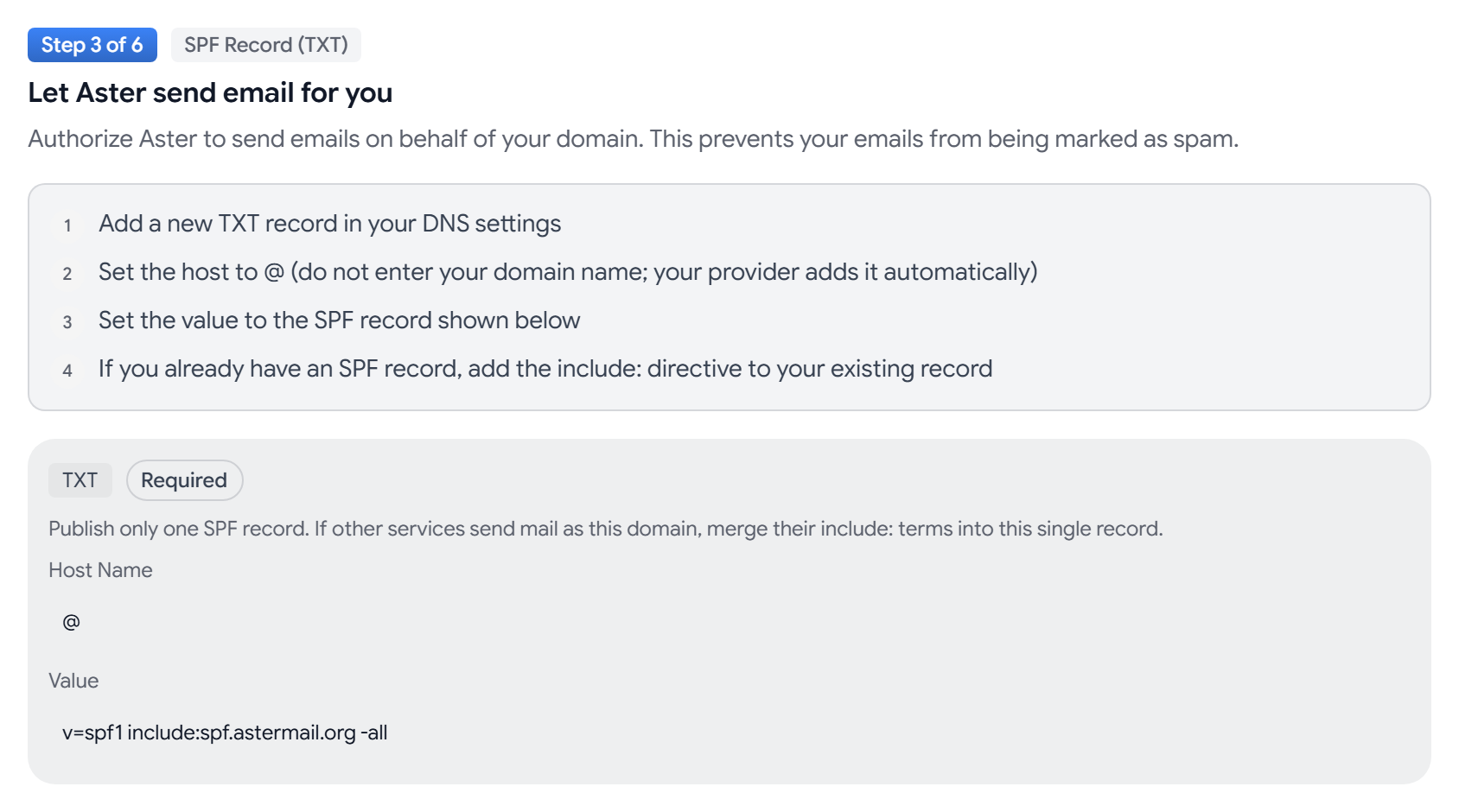
| Let Aster send email for you | TXT (SPF) | @ | Yes |
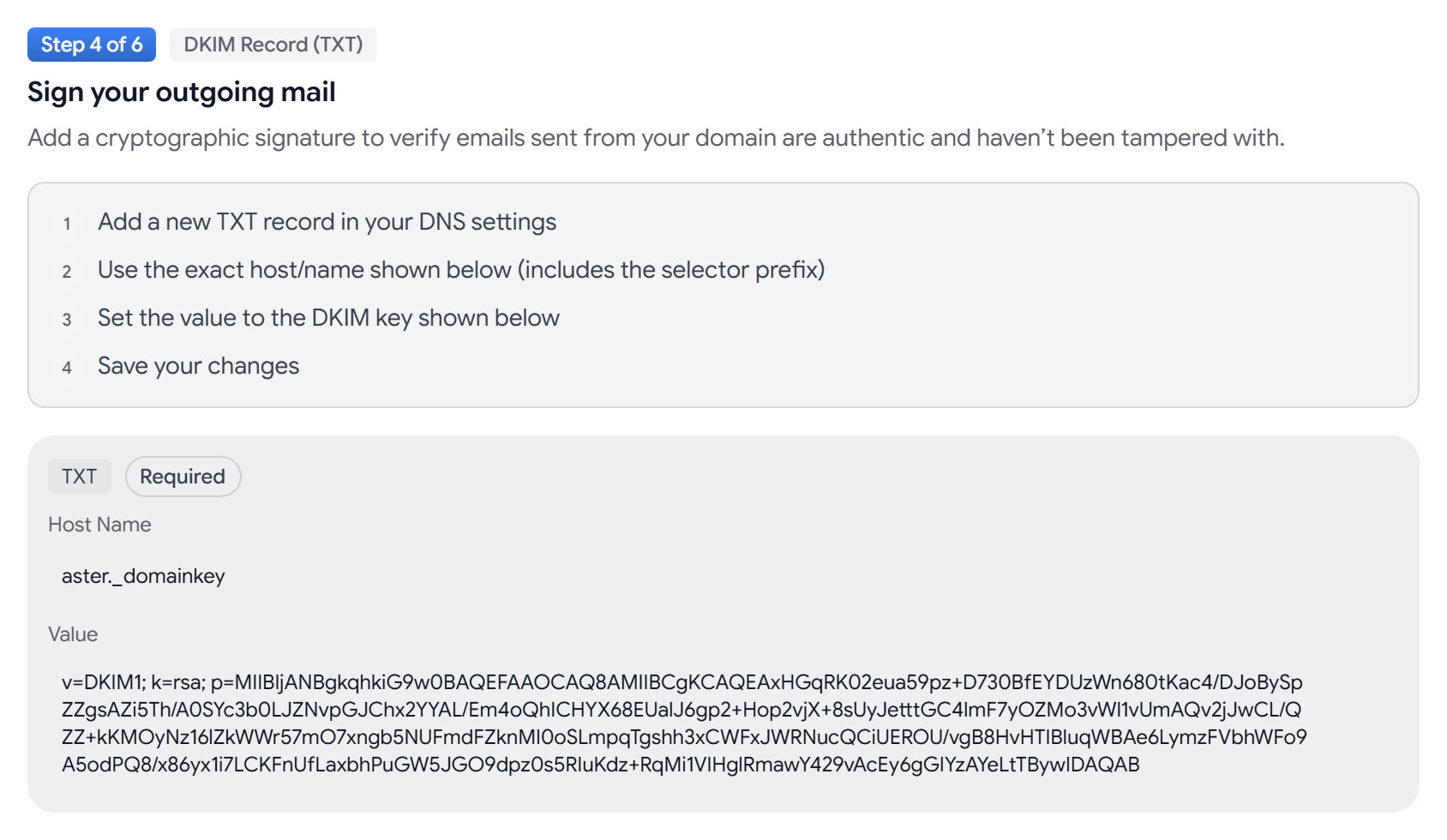
| Sign your outgoing mail | TXT (DKIM) | aster._domainkey | Yes |
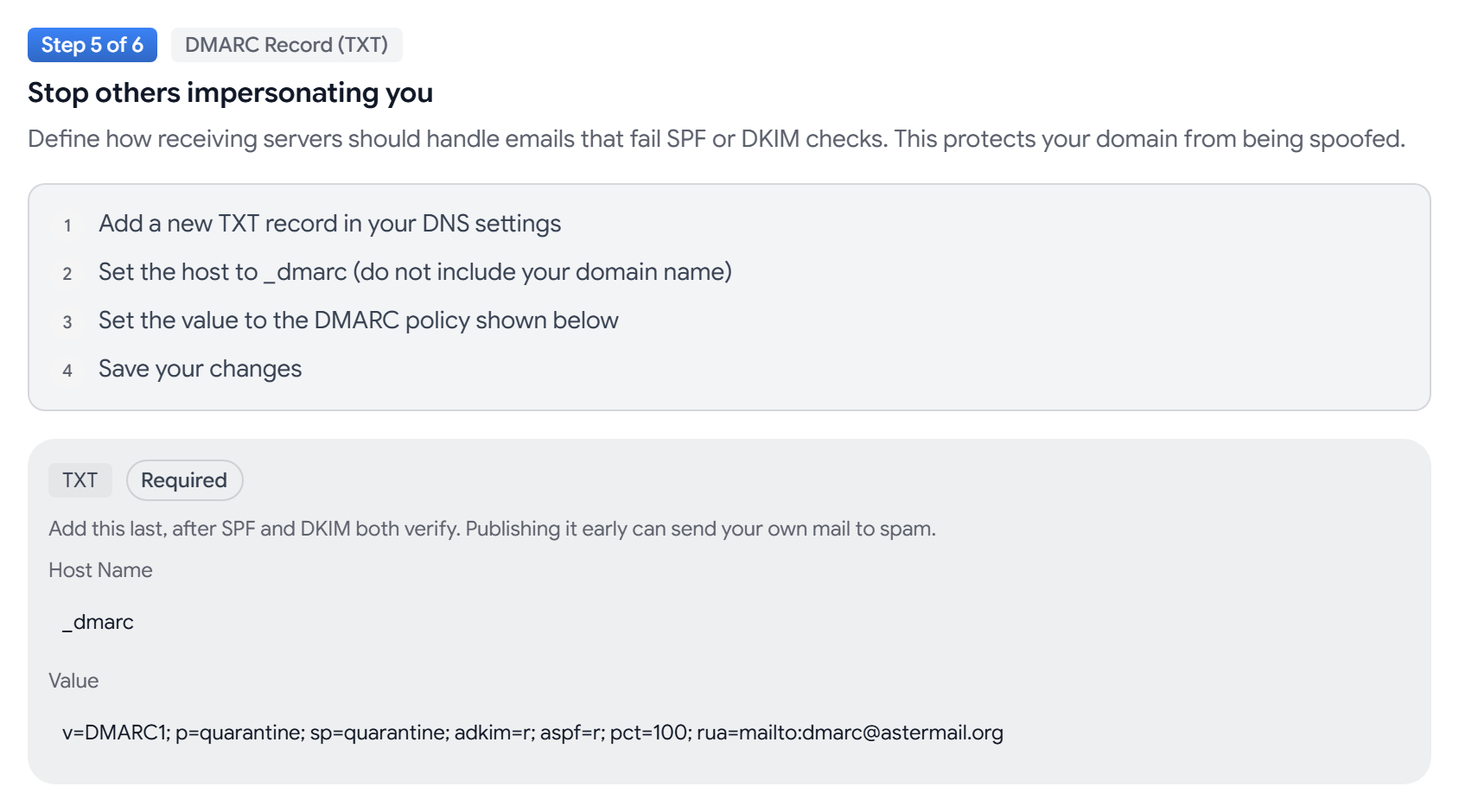
| Stop others impersonating you | TXT (DMARC) | _dmarc | Yes |
| Get encryption failure reports | TXT (TLS reporting) | _smtp._tls | Optional |
You can close the wizard and verify later. To return to it, select Continue Setup on the domain.
Ownership and MX
The _aster-verify record proves that you control the domain. The MX record routes incoming mail to Aster. Remove the MX records from your old provider, or new mail won’t reach Aster. Finish setting up your addresses before you switch, because the change moves all incoming mail for the domain.
SPF
SPF lists the servers allowed to send for your domain. The value looks like this:
v=spf1 include:spf.astermail.org -all
Publish only one SPF record per domain, because two SPF records make both fail. If another service also sends mail as your domain, add its include: term to this record instead of creating a second one.
DKIM
DKIM signs each message, so a receiving server can confirm that the message wasn’t changed in transit. Aster generates the key for your domain. Use the exact host shown, including the selector prefix.
DMARC
DMARC tells receiving servers what to do with mail that fails SPF and DKIM. Add it after SPF and DKIM, because publishing it first can send your own mail to spam.
The value Aster shows sets a quarantine policy and sends reports to Aster. If other services send mail as your domain and you want to watch reports before you enforce anything, publish p=none first and tighten it later. Aster accepts any valid DMARC record.
Check your records
- Go to Settings, and then select Domains under Aliases & Domains.
- On the domain, select Verify All Records. The domain shows how many required records are verified, such as 3/5 verified.
- To see the records again later, select View DNS Records.
DNS changes can take up to 48 hours to propagate. While a check is pending, Aster checks again automatically every 15 seconds. On a verified domain, select Check now to check again.
Troubleshooting
- A record shows Not detected: Wait a few minutes and check again. If it still fails, compare the host and value with the wizard character by character.
- The domain shows You are not receiving email: Mail sent to the domain isn’t reaching Aster. Check the MX record and remove any old ones.
- The domain shows Mail works, but it may land in spam: At least one sending record is missing or wrong. Select Show me the record to add and fix it.
- Mail you send still goes to spam: Confirm that every required record is verified, and check that you have only one SPF record.
Related articles
Apakah artikel ini membantu?