





Pengaturan membaca dan percakapan
To change when messages are marked as read, how conversations are grouped, and where the reading pane sits, go to Settings > Reading & Conversations > Behavior. Aster saves each change as soon as you make it.
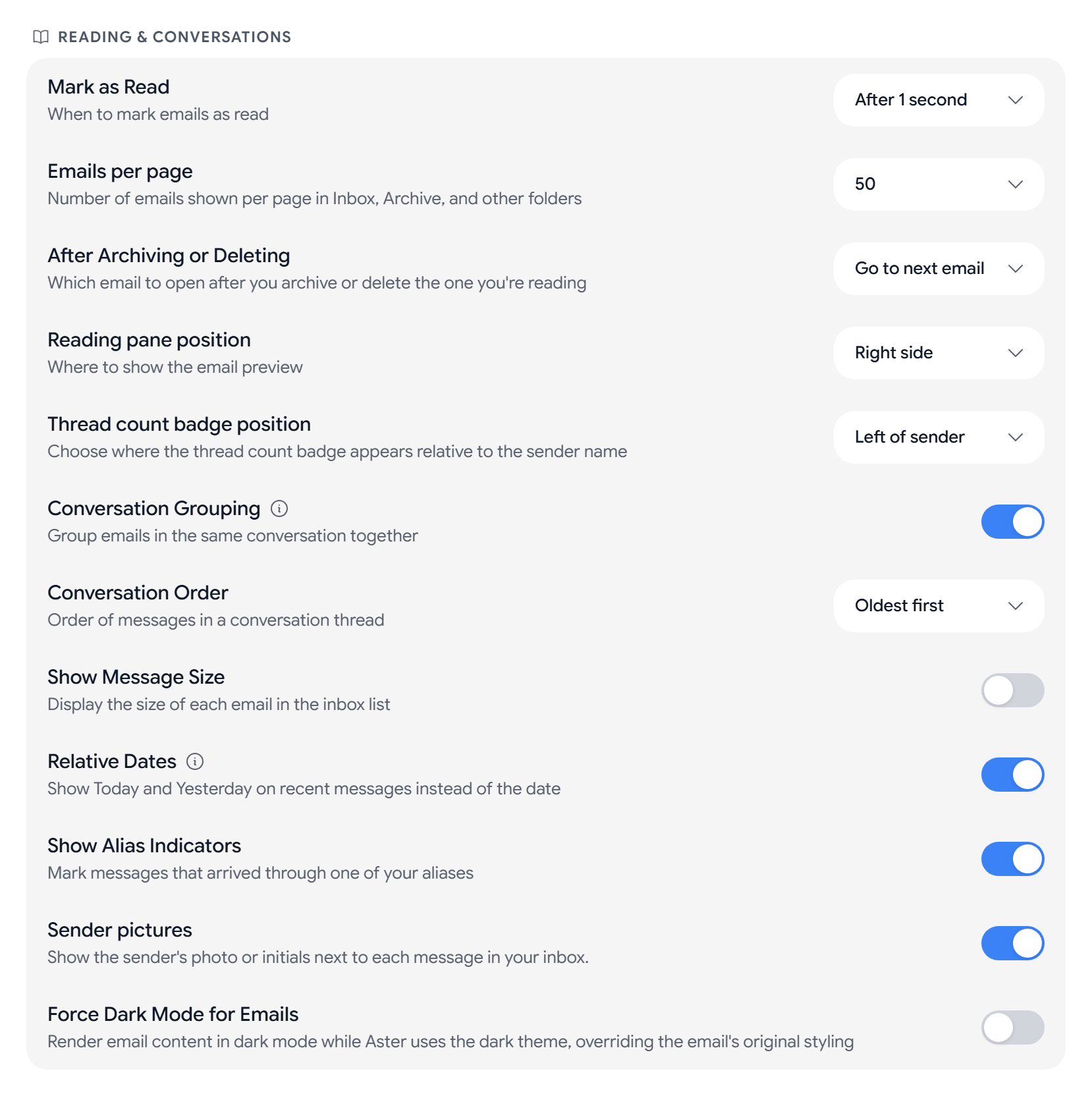
Reading & Conversations
- Mark as Read. Immediately, After 1 second, After 3 seconds, or Never (manual only). The default is Immediately.
- Emails per page. 10, 20, 30, 50, or 100 messages on each page of a folder.
- After Archiving or Deleting. Go to next email, Go to previous email, or Return to email list.
- Reading pane position. Right side, Bottom, or Hidden (click to open).
- Thread count badge position. Left of sender or Right of sender.
- Conversation Grouping. This is on by default. If you turn it off, Aster asks you to confirm first, because every message then shows as its own item.
- Conversation Order. Oldest first or Newest first.
Change what the message list shows
- Show Message Size shows the size of each message. It is off by default.
- Show Alias Indicators marks mail that came in through one of your aliases. It is on by default.
- Sender pictures shows the sender’s photo or initials.
- Force Dark Mode for Emails always shows message content in dark colors.
You can also change Preview text, Density, Reading pane position, Conversation Grouping, and Sender pictures from the quick settings panel in the inbox.
Translate incoming mail
Translation runs entirely on your device, and nothing that you read is ever sent off to a translation service.
- Translate incoming mail. Off, Ask each time, or Always translate. The first translation from each language downloads a language pack of 20 to 55 MB.
- Languages you read. Aster does not offer to translate these. Aster fills this list from your device, and you can select Add language.
- Never translate. Aster never translates these languages, in any mode.
- Downloaded language packs. You can see the space each pack uses and select Remove or Remove all. Aster downloads a removed pack again the next time that you translate that language.
Change the sidebar
- Sidebar Width goes from 200 px to 360 px.
- Minimize Sidebar collapses the sidebar to icons.
- Show side panel keeps contacts and other quick tools in a panel beside your mail.
Replies, reactions, and protected folders
- Default Reply. Reply to sender or Reply to all.
- Auto-save recent recipients to contacts. This is on by default.
- Reactions. Lets you react to messages with emoji and shows reactions from other people.
- Folder Lock Mode. Unlocked for session is the default. Lock on leave locks a protected folder the moment that you move away from it.
- Purge Protected Folder Contents. Preselects destroying the mail inside when you delete a protected folder.
Swipe actions on mobile web
In the mobile web app, go to Settings > Behavior and find Swipe Actions. Choose what happens when you swipe left or right on a message in the list.
- Swipe left. The default is Archive.
- Swipe right. The default is Mark read.
Both menus offer Archive, Move to trash, Mark read, Snooze, Star, Report spam, and None. Below them, Customize toolbar sets which actions appear in the bottom toolbar while you read a message. The three-dot menu always keeps all of the options.
The same section has Haptic Feedback, where Vibrate on important actions makes your phone vibrate when you complete an action.
Undo send
Enable Undo Send is on by default, and Cancellation Period goes from 1 to 30 seconds, with 10 seconds as the default. For more, see Undo send and work with drafts.
Confirmations
Confirm Delete, Confirm Archive, and Confirm Spam are off by default. If you turn one on, Aster asks you before it does that action.
Spam filtering
- Enable Spam Filtering moves spam to your Spam folder.
- Spam Sensitivity. High catches more spam but sometimes flags real mail, and Low lets more through. Medium suits most people.
- Auto-delete spam after. 7 days, 14 days, 30 days, or Never (keep forever). If a family admin sets this for everyone, it shows Controlled by a family admin.
If your spam settings do not load, select Retry before you change anything, so you do not overwrite your saved values.
Advanced
- Settings view opens Settings as a Full page or a Popup.
- Default Email App opens
mailto:links in Aster Mail. This is only in the web app. - Keep running when you close the window keeps the desktop app in the notification area so new mail still arrives. This is only in the desktop app.
- Developer Mode shows the Developer tab. See How to use developer settings in Aster Mail.
Related articles
Apakah artikel ini membantu?