





Enviar y recibir correo
Write, send, reply to, and forward messages, and choose which of your addresses each one comes from.
Mail between Aster accounts is end-to-end encrypted automatically.
Write a message
- Select Compose. A New Message window opens.
- Enter one or more recipients in the To field. To add more people, use Cc or Bcc.
- Enter a subject and write your message.
- Select Send, or press Ctrl+Enter. On a Mac, press Command+Enter.
Drafts save as you type, so if you close the window by accident, your message waits in Drafts. For details, see Undo send and work with drafts.
You can keep up to three composers open at once. To start a fourth message, close one of the open composers first.
Encryption when you send
- To another Aster account: the message is end-to-end encrypted automatically.
- To someone outside Aster who publishes an encryption key: Aster Mail shows a padlock in the composer. Select the padlock to encrypt the message end to end.
- To anyone else: use Encrypt for external recipients. The recipient opens the message with a password you share with them separately. For the steps, see Send an encrypted message to anyone.
Reply and forward
- Open a message.
- Select one of these:
- Reply answers only the sender.
- Reply All also includes everyone else on the message.
- Forward sends a copy of the message to someone new.
Choose the address you send from
In the composer, select the From field and choose your main address, an alias, or an address on a custom domain.
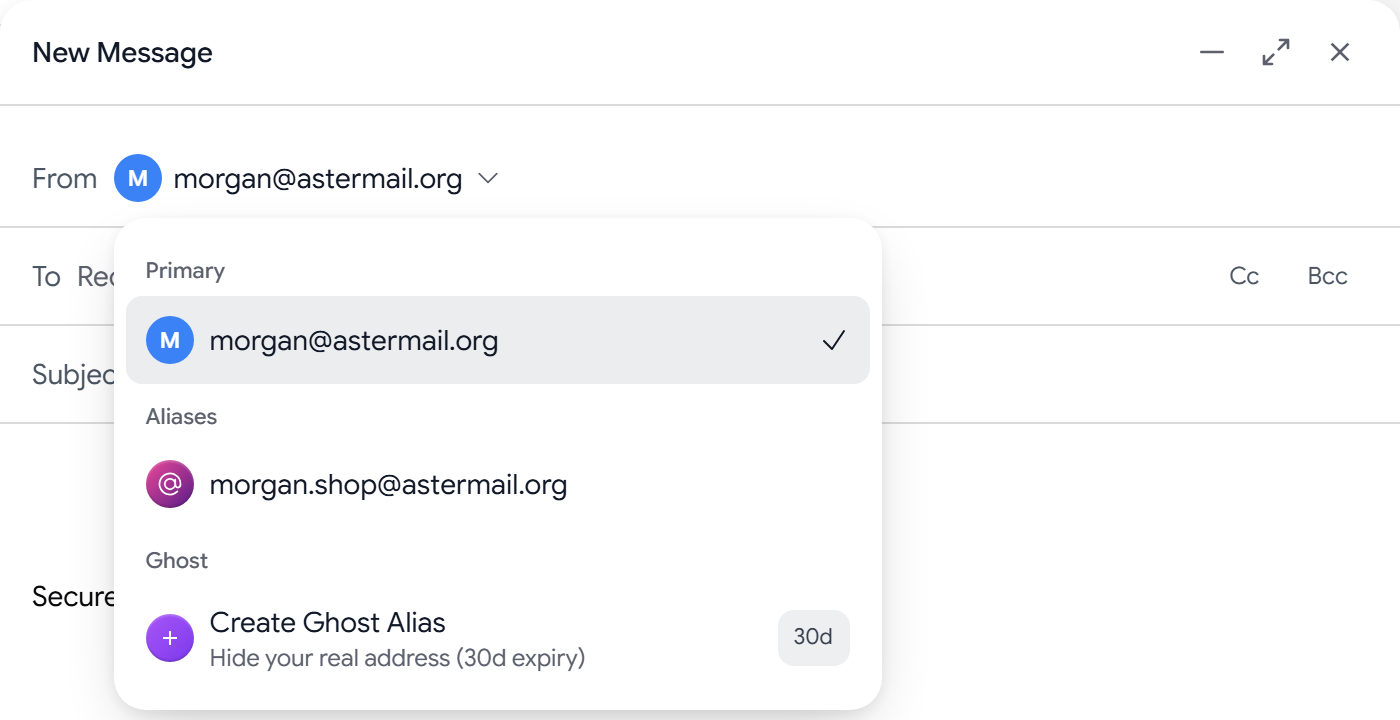
Replies come back to the address you chose, and the other person doesn’t see your main address. To set up aliases or a custom domain, see Add aliases and custom domains.
Attach files
Select the paperclip, or drag files into the message. Attachments are encrypted with the message, and your plan sets the size limit. For details, see Send and open attachments.
If a message doesn’t arrive
Work through these checks in order:
- Check Spam. Mail from a new sender sometimes lands there. To move it back, open the message and select Not spam. See Manage spam and blocked senders.
- Check the address. Make sure the sender used the right address, with no typing mistakes.
- Check your aliases. Mail sent to an alias that’s turned off isn’t delivered. To receive mail at it again, turn it back on.
- Check your rules. A mail rule might have moved the message to a folder or skipped the inbox. See Filter mail with rules.
- Wait a few minutes. Some sending servers queue mail and retry later.
If a sender says their message bounced, ask them for the exact text of the bounce message and open a support request with it.
Related articles
¿Te resultó útil este artículo?