





Configuración de la cuenta
You can change your display name, profile photo, recovery email, and inactivity window from Settings > Account. Most changes save as soon as you make them.
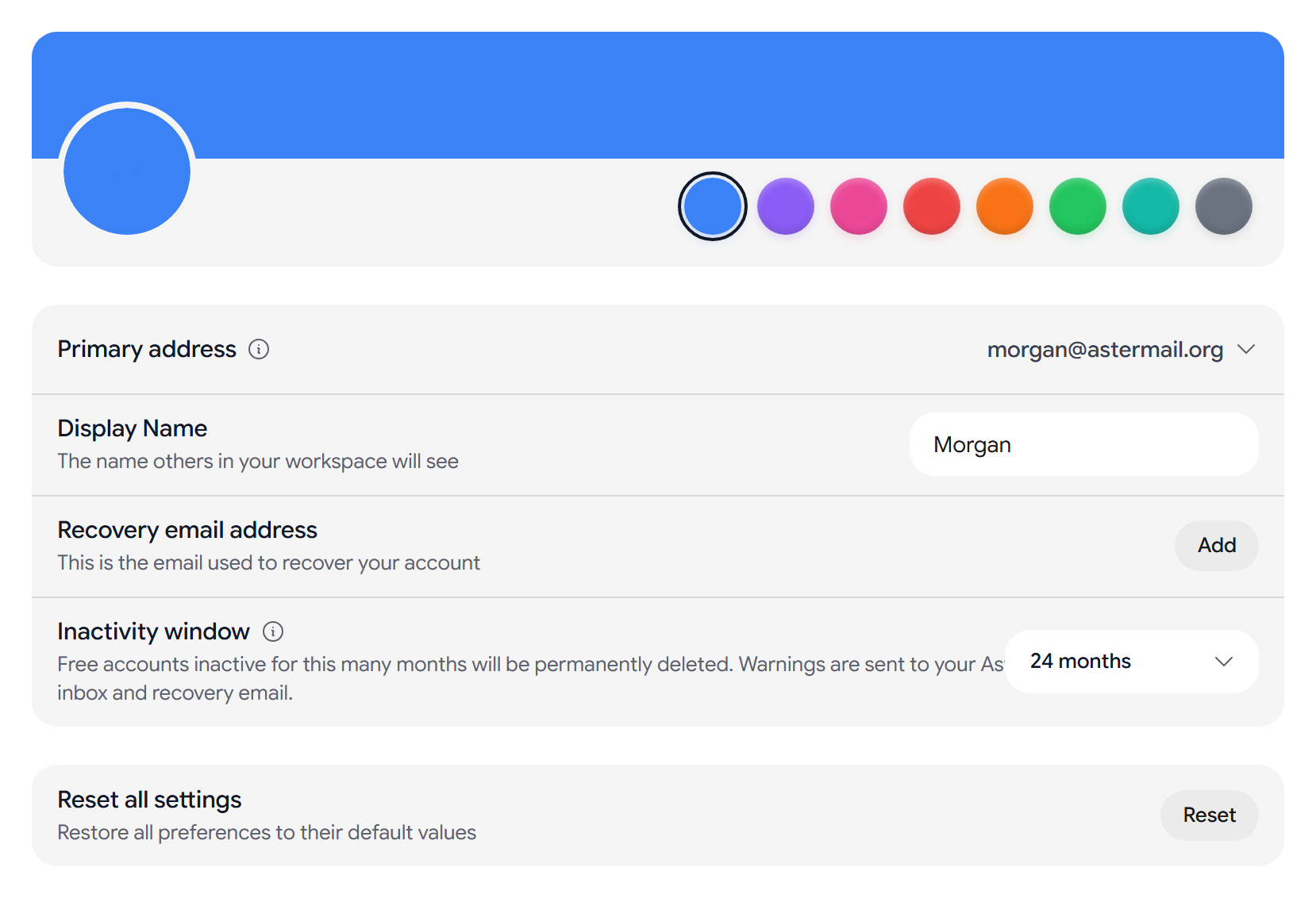
Change your profile photo
- Uploading a photo. Select the camera button on your avatar, labeled Change photo, and choose a JPEG, PNG, or WebP image of up to 5 MB. Aster resizes it to 256 px for you.
- Removing a photo. Select the X button on your avatar, labeled Remove photo.
- Profile color. If you do not have a photo, Aster will show your initials on the color that you pick under Profile color.
Primary address
Primary address shows the address that Aster uses as your main identity. You can copy it by selecting it.
If your primary address is on a custom domain, Aster will show the Aster address that still receives your mail under it. To change your primary address, go to Settings > Aliases and select Set as primary address on an alias.
Change your display name
Display Name is the name that people see when you send them mail. Type a new name and press Enter, or select outside the field, to save it. A display name can be up to 100 characters.
Badges
If your account has earned a badge, you can pick it under Active badge, or choose None.
- Show on profile will show your badge to other Aster users.
- Show in signature will add your badge to the signature of the mail that you send.
Add a recovery email
Recovery email address is an outside address that can help you get back into your account. Aster will show whether it is Verified or Not verified.
- Select Add to add one, and confirm with your password.
- Select Update to change it, Resend to send the verification link again, or Remove to remove it.
One recovery email can be used on up to 20 accounts.
Inactivity window
Inactivity window sets how many months a free account can go without activity before Aster permanently deletes it. You can choose 3, 6, 9, 12, 18, or 24 months, and the default is 24 months.
- Signing in from any Aster app counts as activity, including Aster Bridge.
- Aster will send warnings to your Aster inbox and your recovery email before it deletes anything. Select the info icon next to Inactivity window to see the exact timing.
- Paid plans are not affected by the inactivity window.
You will need to confirm with your password to change it.
Reset all settings
Select Reset next to Reset all settings, then select Reset again. Aster will restore every preference to its default value. It will not delete your mail, contacts, aliases, or keys.
Delete your account
Delete account is at the bottom of Settings > Security. See Delete your account first.
Related articles
¿Te resultó útil este artículo?