





Configuración de alias
To create an email alias, go to Settings > Aliases > Create Alias. Aliases are extra addresses that deliver to your inbox, so you can give a different address to each site or person.
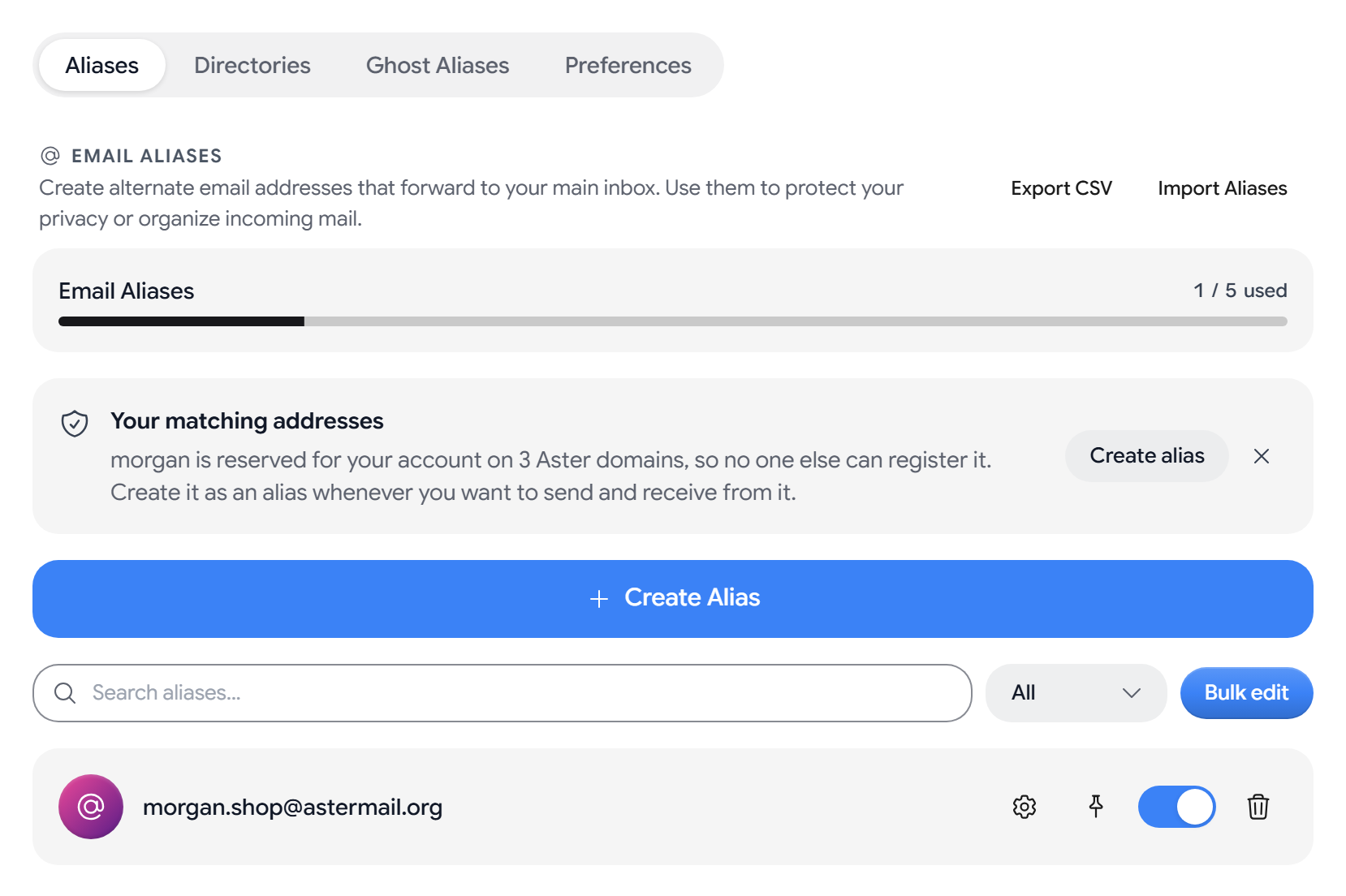
The page has four tabs: Aliases, Directories, Ghost Aliases, and Preferences. Alias avatars, pinning, directories, extra alias domains, CSV import and export, and restoring deleted aliases are on the Star plan and up.
Create an alias
- Select Create Alias.
- Under Address, type the part before the @, or generate one with Words or UUID.
- Choose a domain. Extra domains are on the Star plan and up, and Custom Domains lists the domains that you verified.
- You can add a Display name and a private Note.
- Select Create Alias.
You can create aliases on two domains, astermail.me and astermail.net, on the Star plan and up. If your username is free on another Aster domain, Aster will show you your matching address, and you can select Create alias to claim it.
Turn an alias on or off
- Turning an alias off. Use the switch on the alias. A disabled alias stops receiving mail.
- Pinning. Select Pin alias to keep it at the top of the list.
- Primary address. Select Set as primary address to send as that alias by default.
- Bulk edit. Select Bulk edit to enable, disable, or delete several aliases at once.
- Deleting. New aliases on Aster domains can’t be deleted during their first 30 days unless you are on Supernova or Family. On every paid plan, you can delete an alias on your own verified domain right away.
Alias settings
Select Advanced settings on an alias to open its settings:
- Delivery. You can choose the folder that mail to this alias lands in and apply a label to it. Select Apply now to sort mail that the alias already received.
- Sender pinning. Off accepts mail from anyone, Lock to first sender accepts only the first sender, and Allowlist accepts only the senders that you add.
- Rules. Select Add rule to block, trash, or label matching mail.
- Blocked mail log. Shows the mail that the alias blocked in the last 30 days, and why.
- Reverse contacts. Shows the addresses that you wrote to from this alias. You can Block or Unblock each one.
- Sent mail. Select View sent mail to only show what you sent from the alias.
Restore a deleted alias
Deleted aliases go to Recently deleted, where you can select Restore. Delete permanently removes an alias for good, but the address stays reserved to your account.
Import and export aliases
- Importing. Select Import Aliases and drop a CSV file, a text list, or a JSON export. Aster will mark each address Will import, Already exists, or Invalid before you confirm the import.
- Exporting. Select Export CSV, choose what to include, pick CSV (spreadsheet) or JSON, select Continue, and then select Download.
Aster builds the export in your browser and the file is not encrypted, so store it somewhere safe.
Directories
A directory creates aliases on demand. If you create a directory named shopping, mail sent to store.shopping@astermail.org will create that alias and deliver the message.
- Enter a name under Directory key and choose a domain.
- Select Create directory.
A dot, slash, plus sign, or number sign all work as the separator before the directory name.
Turn off Auto-create aliases to stop new aliases from being made. Aliases that a directory already created will keep working if you delete it.
Ghost aliases
Ghost aliases are temporary addresses that expire on their own, and your plan sets how many you can make each month.
- Select Compose with Ghost Mode to start a message from a new ghost alias.
- Select Extend to keep one longer, or Expire to end it now.
Alias preferences
- Default domain is the domain that Aster picks when you create an alias.
- Sender display format sets how a sender’s name appears on forwarded mail.
- Include sender in reverse aliases is on the Star plan and up.
- Unsubscribe button action can be Use original policy, Disable alias, or Block sender.
- Response to blocked mail can be Silently ignore or Reject (bounce).
- When deleting an alias can be Move to trash or Delete immediately.
Related articles
¿Te resultó útil este artículo?