

การตั้งค่า
ทุกตัวเลือกในการตั้งค่าของ Aster Mail แยกตามส่วน
ทั่วไป
- ข้อมูลอ้างอิงการตั้งค่า Find every section and tab in Aster Mail Settings, with a link to the article that explains each option.
- การตั้งค่ารูปลักษณ์ Change the theme in Aster Mail, turn on dark mode or a color theme, pick your fonts and language, and choose how messages and the composer open.
- การตั้งค่าการช่วยการเข้าถึง Change the text size in Aster Mail, turn on high contrast, a dyslexia-friendly font, reduced motion, keyboard shortcuts, and Low Network Mode.
- การตั้งค่าการอ่านและการสนทนา Choose when Aster Mail marks messages as read, group conversations, move the reading pane, and set up translation, undo send, and spam filtering.
- หมวดหมู่กล่องจดหมายเข้า Set up inbox categories in Aster Mail, choose which tabs show in your inbox, mute category notifications, and create your own custom categories.
- การตั้งค่าการเขียน ลายเซ็น และเทมเพลต Add an email signature in Aster Mail, give each alias its own signature, set the default font size and color, and save reusable message templates.
บัญชีและความปลอดภัย
- การตั้งค่าบัญชี Change your Aster Mail display name, profile photo, badge, recovery email, and inactivity window, or reset all of your settings from one page.
- การตั้งค่าความปลอดภัย Change your Aster Mail password, turn on two-step verification, add passkeys, sign out other sessions, and block trackers from Security settings.
- การตั้งค่าการเข้ารหัสและคีย์ PGP Export your Aster Mail PGP public or private key, encrypt mail by default, and publish your key to WKD or a keyserver.
- การตั้งค่าพื้นที่จัดเก็บ See how much Aster Mail storage you use, empty Spam and Trash to free up space, buy more storage with a card or crypto, and pick your storage format.
แพ็กเกจและการเรียกเก็บเงิน
- การตั้งค่าการเรียกเก็บเงินและเครดิต Upgrade or cancel your Aster Mail plan, switch to yearly billing, pay by card or crypto, download invoices, use credits, and claim a student discount.
- การตั้งค่าแผนครอบครัว Manage your Aster Mail family plan by inviting members, reserving an address for your kids, creating shared mailboxes, and setting security rules for everyone.
- ชวนเพื่อน Invite friends to Aster Mail with your invite link or QR code, add an invite code that you received, and get extra storage for every friend who joins.
ที่อยู่และโดเมน
- การตั้งค่านามแฝง Create an email alias in Aster Mail, turn aliases on or off, set up directories and ghost aliases, and import or export your aliases as a CSV file.
- การตั้งค่าโดเมนที่กำหนดเอง Add a custom domain to Aster Mail, set up its MX, SPF, DKIM, and DMARC records, verify it, rotate your DKIM key, and turn on a catch-all address.
กฎและตัวกรอง
- การตั้งค่ากฎอีเมล Create mail rules in Aster Mail to sort, star, label, or delete incoming mail, start from a template, and clean up old mail in folders automatically.
- ผู้ส่งที่ถูกบล็อกและได้รับอนุญาต Block a sender or an entire domain in Aster Mail, unblock senders, and add senders to your allowlist so their mail never goes to Spam.
- ส่งต่ออีเมลโดยอัตโนมัติ Forward email automatically in Aster Mail with forwarding rules, verify the address you forward to, and pause or remove a rule at any time.
แอปและข้อมูล
- เชื่อมต่อบัญชีภายนอก Add another email account to Aster Mail over IMAP or POP3 so its mail shows in your inbox, send from it over SMTP, and choose how often it syncs.
- ส่งออกอีเมลของคุณ Export your email from Aster Mail as an MBOX or EML file, along with your contacts, settings, and rules, to keep a backup or move to another app.
- การตั้งค่า Aster Bridge Download Aster Bridge for Windows, macOS, or Linux to use Aster Mail in a desktop mail app, manage connected installations, and create SMTP tokens.
- อัปเดต Update the Aster Mail desktop app for Windows, macOS, or Linux, check which version you have, and turn automatic update checks on or off.
- การตั้งค่าสำหรับนักพัฒนา Turn on Developer Mode in Aster Mail to see your build info and encryption status, export a debug report for support, and clear the app cache.
- ส่งความคิดเห็น Send feedback, share an idea, or report a bug to the Aster team from Aster Mail settings, and open a support request when you need an answer.
ดูและเรียนรู้
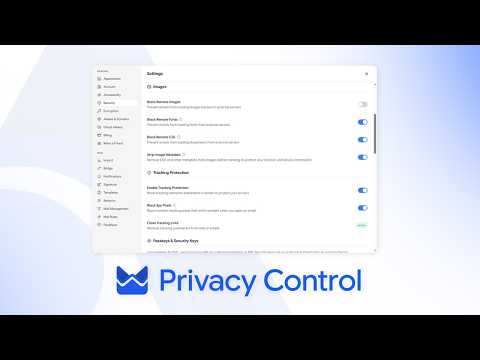
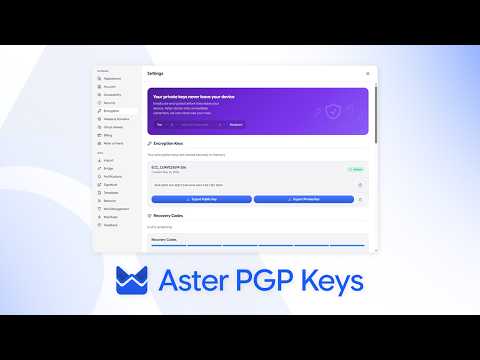
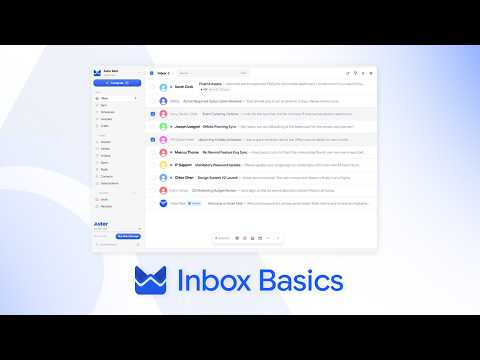
วิดีโอแนะนำสั้น ๆ จากช่องของ Aster
ยังต้องการความช่วยเหลือไหม
ส่งคำขอความช่วยเหลือ แล้วฝ่ายสนับสนุน Aster จะตอบกลับที่กล่องจดหมายของคุณและที่นี่
- ขอความช่วยเหลือจากบัญชีของคุณ ลงชื่อเข้าใช้ Aster Mail เพื่อส่งคำขอและติดตามทุกการตอบกลับได้ในที่เดียว
- ลงชื่อเข้าใช้ไม่ได้ใช่ไหม บอกที่อยู่อีเมลอื่นให้เราทราบ เราจะส่งรหัสไปที่อยู่นั้น แล้วตอบกลับไปที่อยู่นั้น
- คำขอความช่วยเหลือของคุณ ติดตามทุกคำขอที่คุณส่ง และอ่านการตอบกลับจากฝ่ายสนับสนุน Aster
หากต้องการติดต่อฝ่ายสนับสนุนโดยตรง ส่งอีเมลถึง hello@astermail.org