





การตั้งค่ากฎอีเมล
To create a mail rule, go to Settings > Mail Rules > Mail Rules > New rule. A rule checks each incoming message against the conditions that you set, and then takes the actions that you pick, such as moving it to a folder or starring it.
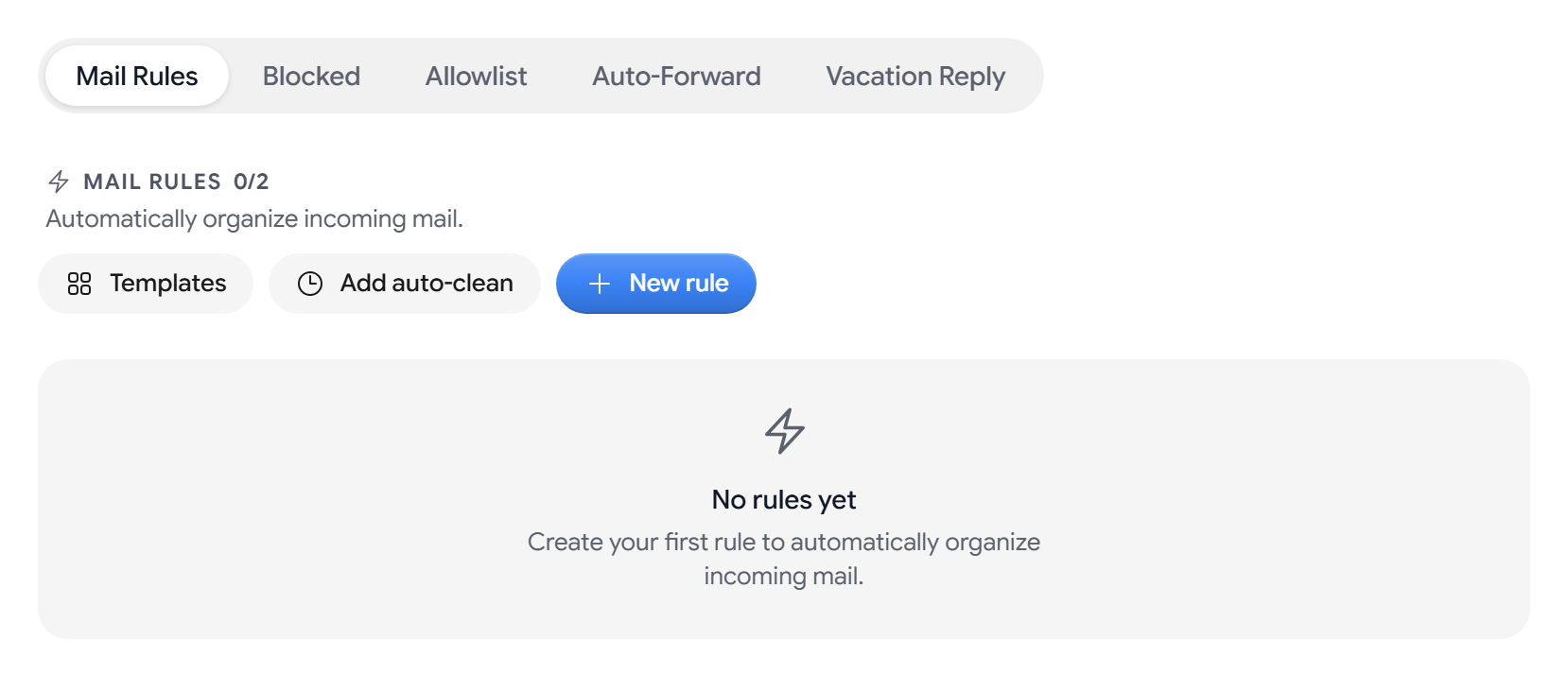
The counter next to the heading shows how many rules you have and how many your plan includes.
Create a rule
- Select New rule, and enter a Rule name.
- Under When mail matches, choose all conditions or any condition.
- Select Add condition, pick a field and an operator, and enter a value.
- Under Do this, select Add action.
- Select Save rule.
A rule needs a name, at least one complete condition, and at least one action before you can save it.
Conditions
- Recipient / Sender. From, Reply-To, To/Cc/Bcc, Cc, Bcc, and Any recipient.
- Content. Subject, Body, Header, and List-ID. Turn on Match case to make a comparison case-sensitive.
- Attachments. Has attachment, Attachment name, and Attachment size.
- Properties. Has List-ID, Is reply, Is forward, Auto-submitted, Has calendar invite, Recipient count, Total size, Spam score, and Date received.
- Authentication. DKIM result, SPF result, and DMARC result. A failed check is a common sign of spoofed mail.
matches regex does not support backreferences, lookahead, or lookbehind, and the editor shows an error before you save a pattern that is not valid.
Actions
Move to, Apply labels, Mark as, Star, Skip inbox, Delete, Pin, Snooze, Categorize, and Notify. Each action can be used once in a rule.
Forward and Auto-reply show as Coming soon. To forward mail now, see How to forward email automatically in Aster Mail.
Write a rule as an expression
The editor has a Visual tab and an Expression tab. On Expression, you can edit the rule as text, for example:
from.address is "alice@example.com" and subject contains "receipt"
A rule with nested conditions can only be edited on the Expression tab.
Start from a template
Select Templates to start from a ready-made rule, such as Sort newsletters, Catch deals, Archive receipts, Flag large attachments, or Hold suspicious mail. Aster opens it in the editor so you can change it before you save. Templates marked Needs a detail from you need a folder or an address first.
Apply a rule to mail you already have
Rules act on new mail as it arrives. To run one on the mail already in your mailbox, open it and select Apply to existing mail now. To stop a run, select Stop applying.
The server can’t read mail that only your device can decrypt, so Aster skips those messages and tells you how many it skipped.
Clean up old mail automatically
Folder auto-clean is on the Star plan and up.
- Select Add auto-clean and choose a custom Folder.
- In Delete emails older than, enter 1 to 3650 days. The default is 30.
- Under When cleaning, choose Move to Archive, Move to Trash, or Delete permanently.
- Check the preview, and select Save.
Starred and pinned emails are always kept.
Change the order of your rules
Drag a rule by its handle. Rules run from the top of the list down, and each rule shows how many messages it has acted on.
Related articles
บทความนี้มีประโยชน์ไหม